 Template
The Template Trainer app guide
A tour of every screen in Template Trainer: Today, workouts, Programs, the library, Exercises, Progress and Profile, with screenshots and what each button does.
This is a tour of the whole app, screen by screen. New here? Start with getting started, which takes you through your first workout. To build a program of your own, see how to create a program.
How is the app laid out?
Five tabs run along the bottom on a phone, or across the top on a computer:
| Tab | What it's for |
|---|---|
| Today | Your next workout, your current program, this week and new records |
| Programs | Your programs, the program editor, and the Program Library |
| Exercises | Every exercise, with how-tos, demos and your own exercises |
| Progress | History, charts for each lift, muscles trained, and records |
| Profile | Bodyweight, settings, email updates, data export and sign out |
The tabs hide while you're in a workout, so the screen is all sets.
Today
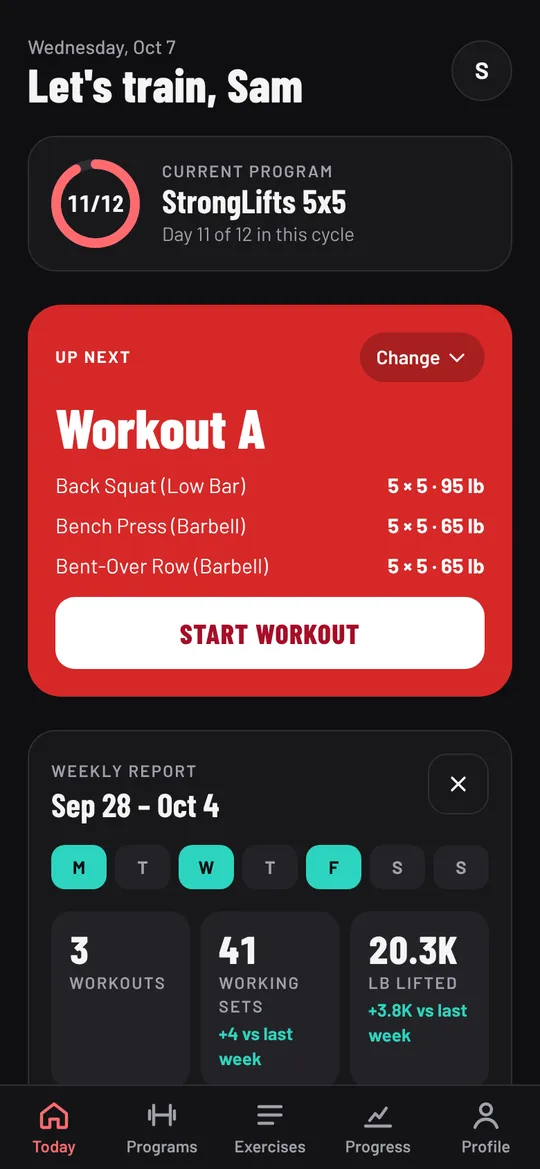
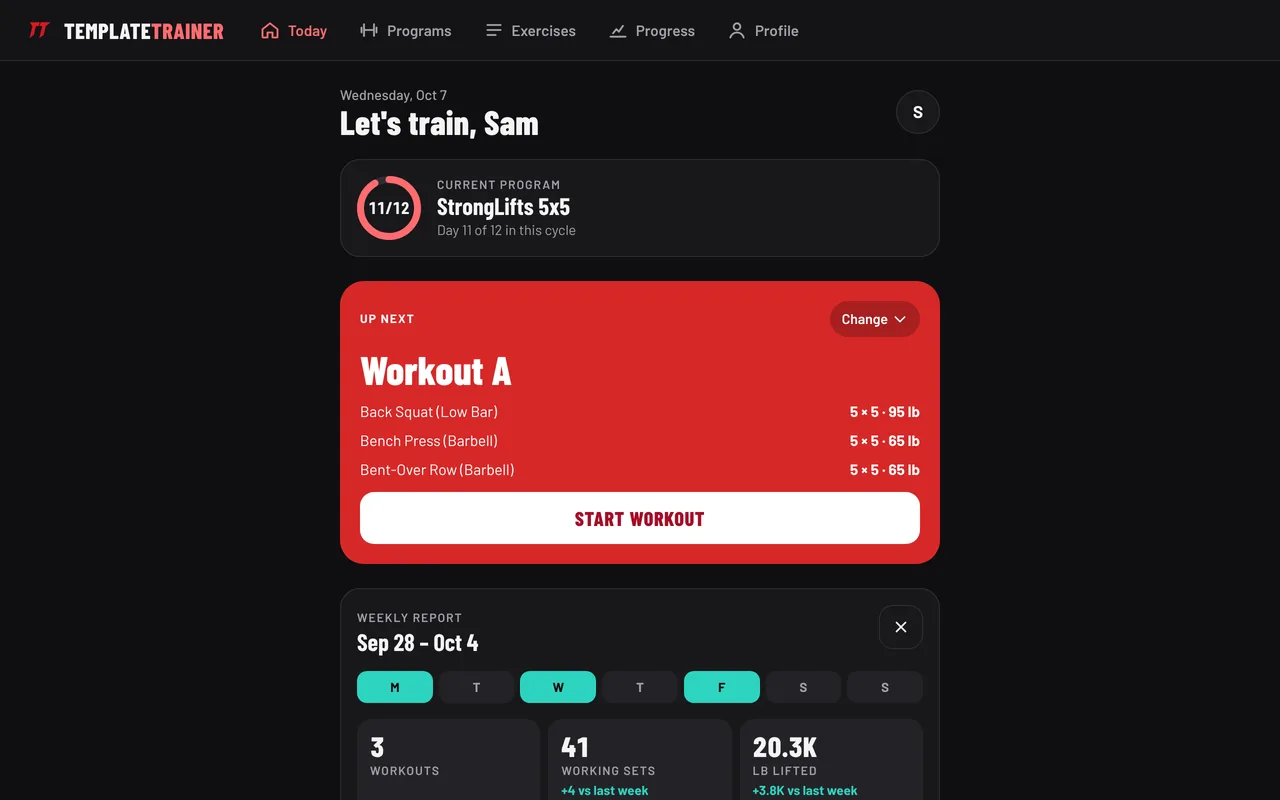
Today is where you start every session. From the top:
- Current program: its name and a ring with your place in the cycle ("Day 11 of 12 in this cycle"). Switch picks another of your programs.
- Up next: the next workout in the schedule, with its exercises and planned sets. Change picks a different workout. A workout done out of order doesn't run progression rules or move your place. Start workout opens it.
- In progress: an unfinished workout appears here with Resume workout and Discard.
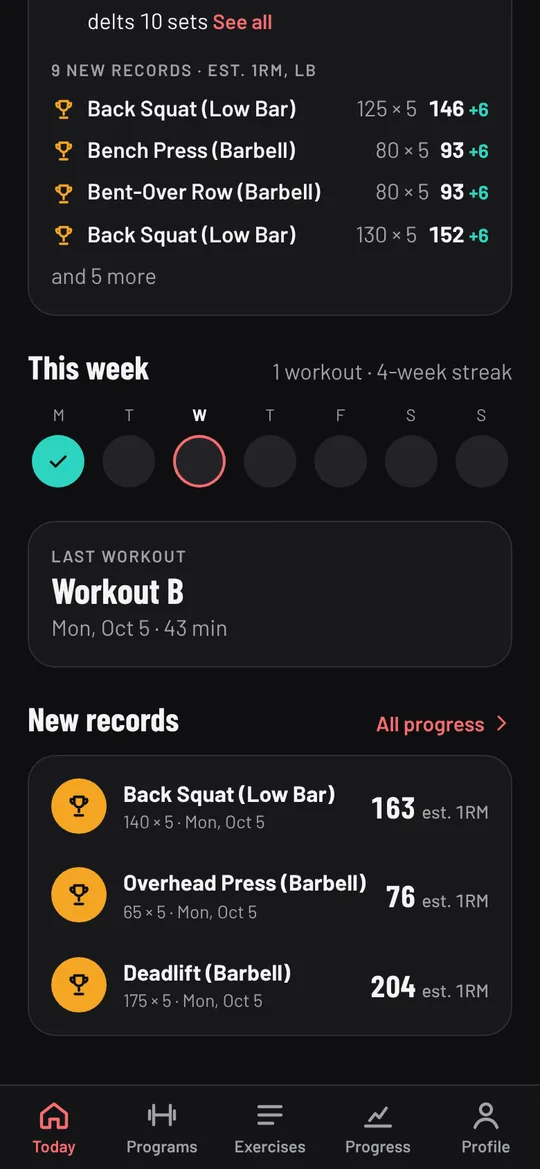
- Weekly report (Sunday to Wednesday): last week's workouts, working sets and pounds lifted against the week before, your streak, the muscles you trained most and new records. Close it with ×.
- This week: a dot for each day, ticked on days you trained, and your streak in weeks.
- Last workout and New records from the last 30 days, each with an estimated one rep max. All progress opens Progress.
- Your year Wrapped, in December and January: your training year in numbers, to look back on or share as a picture.
Tap your initial at the top right for Profile and settings, Help and community (the r/TemplateTrainer community) and Log out.
Logging a workout
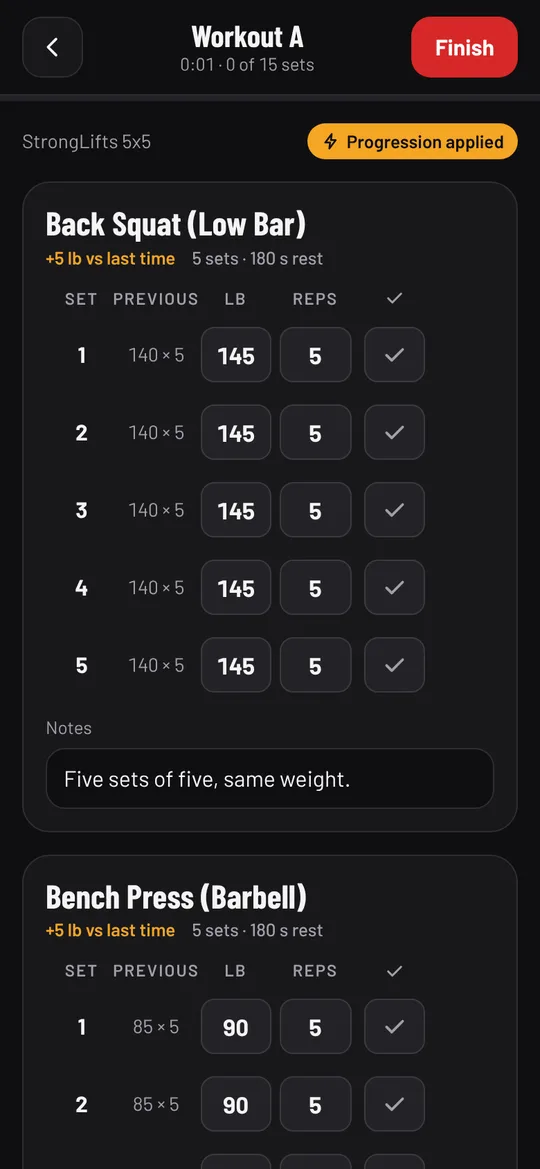
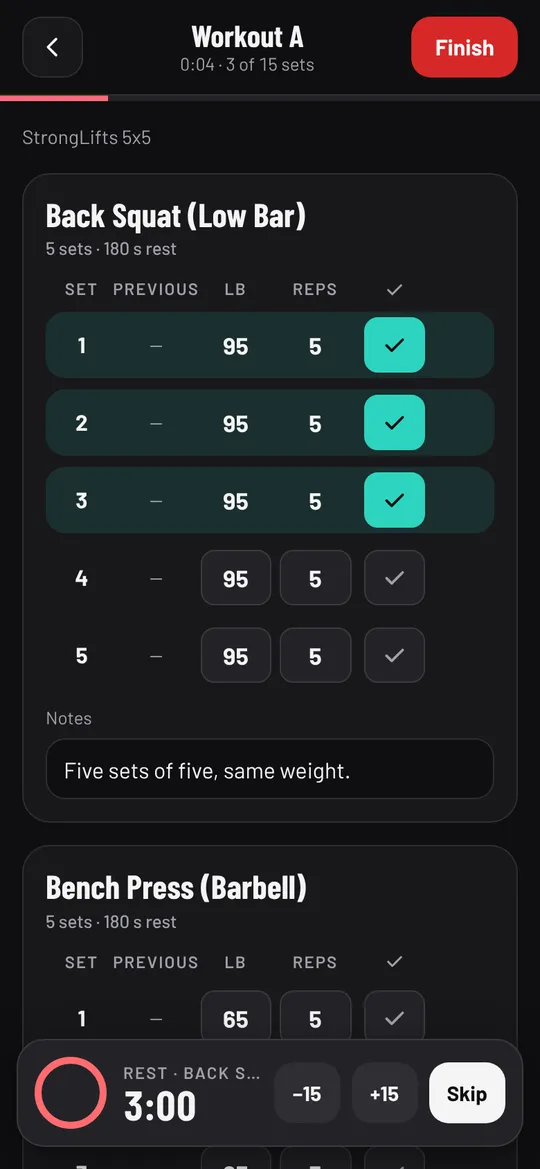
The workout screen lists every exercise with its sets. The header shows the workout's name, the time, sets done, and a progress bar. Chips under it show the program and Progression applied when the program's rules changed today's numbers. Each exercise shows the change, like "+5 lb vs last time".
- Previous: what you did in that set last time.
- LB/KG and Reps: today's numbers. Change them to what you actually did.
- Tick: marks the set done and starts the rest timer, with −15, +15 and Skip.
- Notes: under each exercise, for how it felt.
- Circuits have their own timer that counts work and rest for each exercise, round after round.
- Finish workout saves it and shows the minutes, sets, volume and new records. The back arrow lets you Leave for now (it waits on Today) or Discard workout.
Everything you type is kept on the phone as you go, so a lost signal or a locked screen doesn't lose anything.
Programs
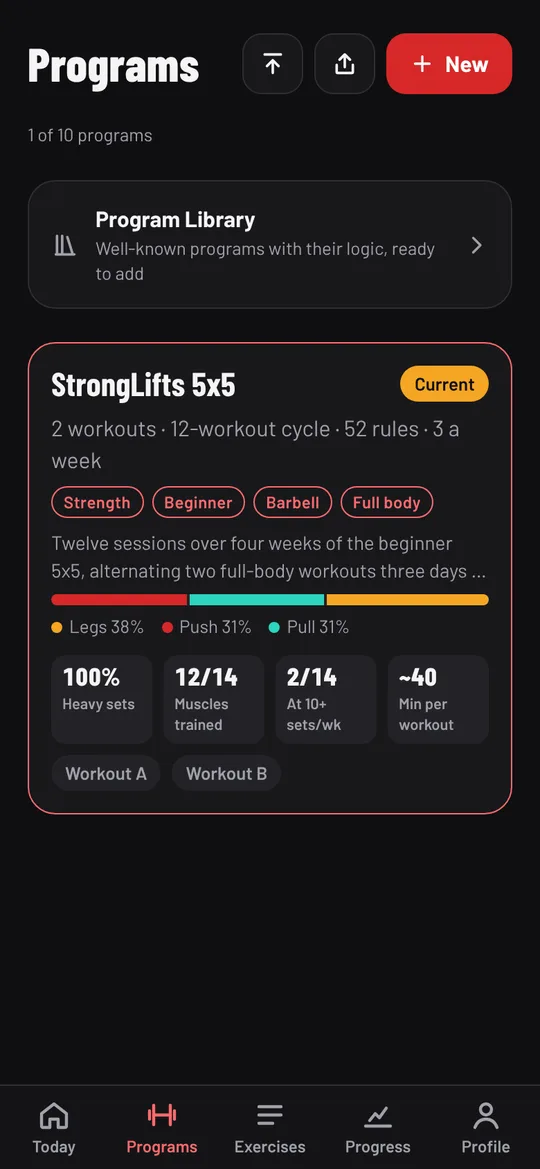
The Programs tab lists your programs (up to 10). The one Today uses is marked Current. Each card shows its workouts, cycle length, number of rules, workouts per week, tags, and a profile of the muscles it trains. With more than one program, tag chips at the top filter the list.
- New starts a program; the upload icon imports a program file; the share icon sends one to another member.
- Program Library opens the ready-made programs (below).
- Shared with you appears when someone sends you a program: Add or Dismiss.
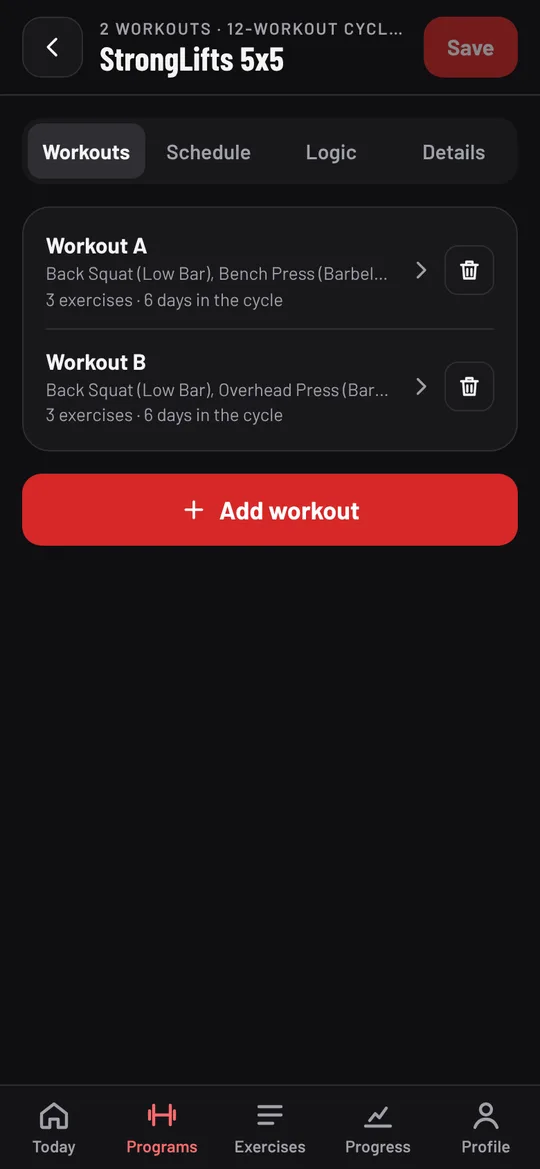
Tap a program to open the editor, with four tabs: Workouts, Schedule, Logic and Details. How to create a program covers each one step by step.
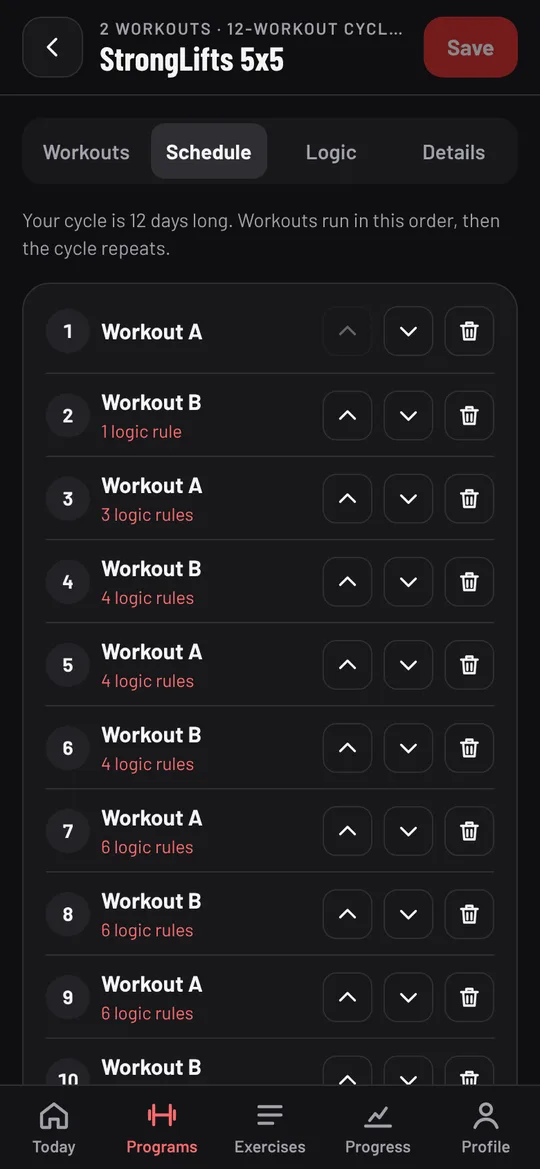
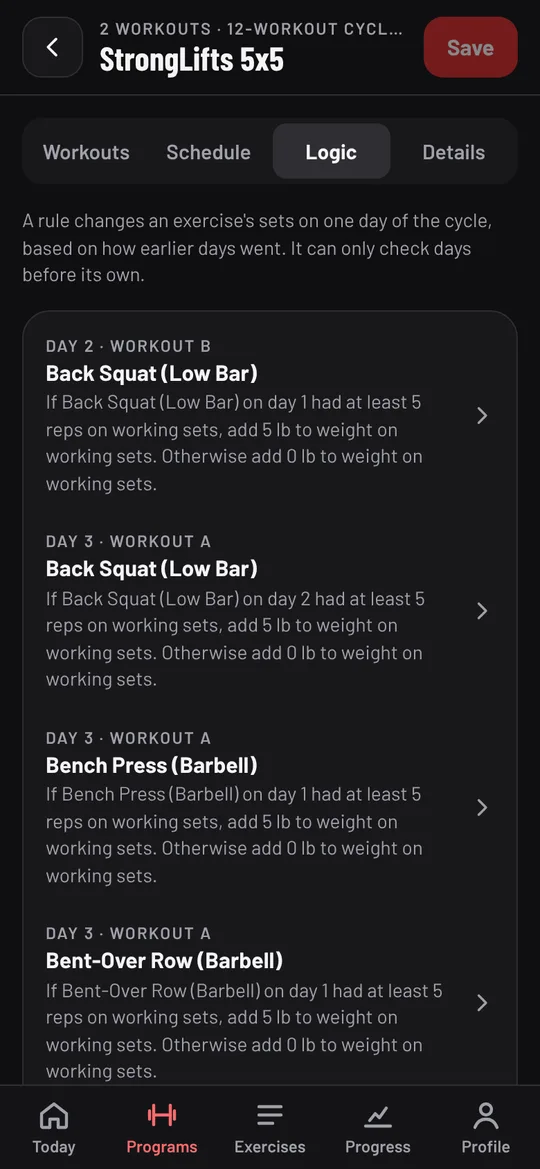
The Schedule tab shows the cycle of days, with how many rules each day has. The Logic tab lists every rule as a sentence, such as "If Back Squat on day 1 had at least 5 reps on working sets, add 5 lb to weight on working sets." Tap a rule to edit it.
The Program Library
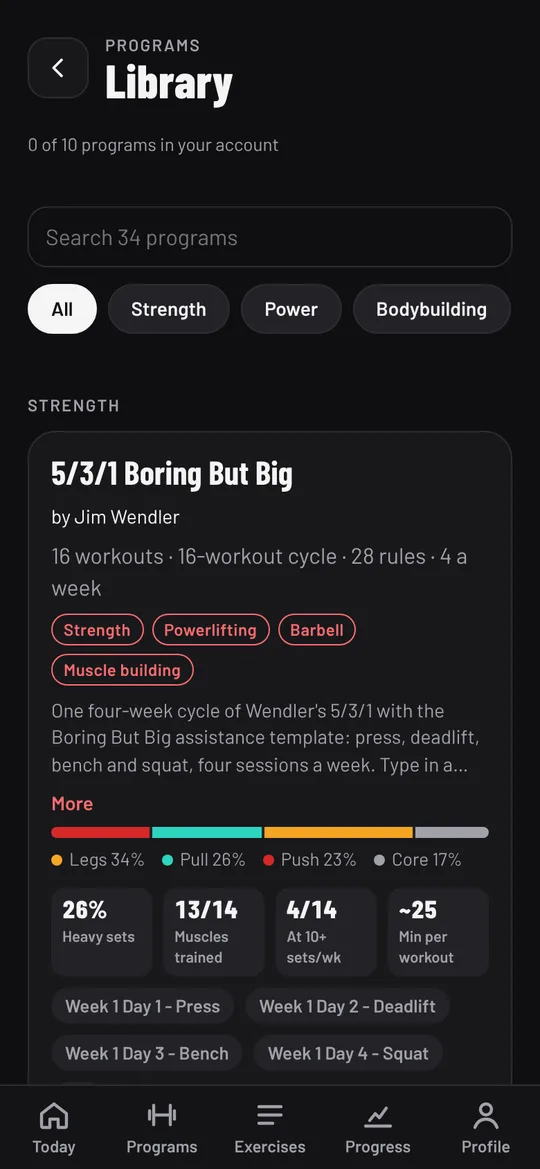
The library holds well-known programs with their rules already written: StrongLifts 5x5, Starting Strength, GZCLP, 5/3/1, nSuns, the Texas Method, PHUL, PHAT, the Reddit PPL and more. The workout templates page lists them all.
- Search by name, author or description, or filter by Strength, Power, Bodybuilding, General fitness or Conditioning.
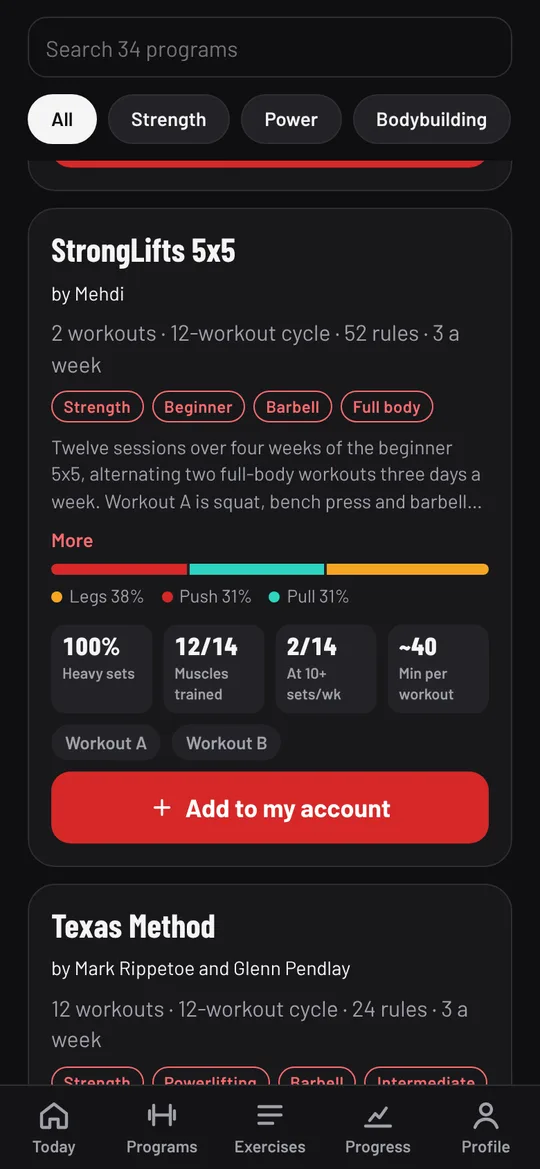
- Each card shows the author, workouts, cycle length, rules, days a week, the muscles it trains and a description (More shows all of it).
- Add to my account reviews the exercises it uses, then adds it. Added programs are marked Added, and Add another copy adds a second.
The library needs a connection.
Exercises
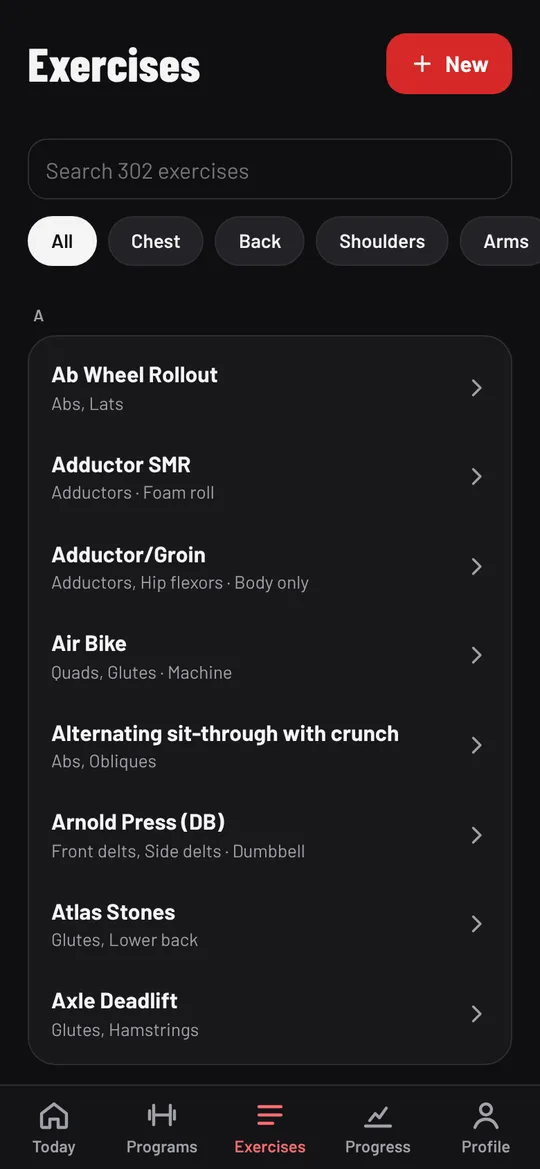
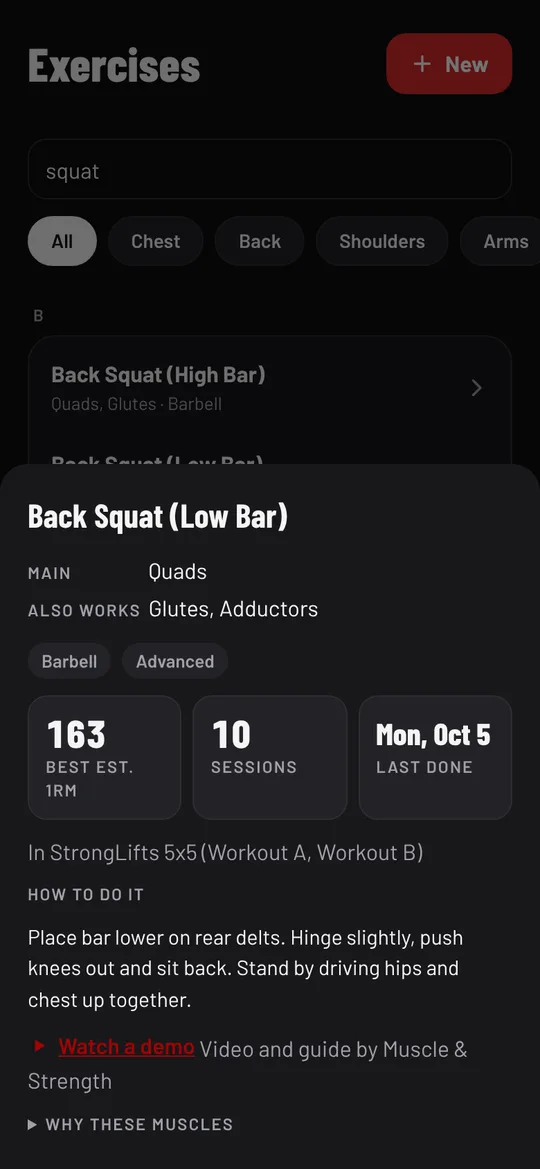
Every exercise in the app, from A to Z (over 300), plus your own.
- Search, or filter by Chest, Back, Shoulders, Arms, Legs, Core or Mine (your own).
- Tap an exercise for the muscles it works, its equipment and difficulty, your best estimated one rep max, sessions and last done, which of your programs use it, How to do it, and Watch a demo.
- New creates your own exercise: a name, the muscles (main one first), equipment, type, difficulty and instructions. Muscles count toward a program's balance.
Progress
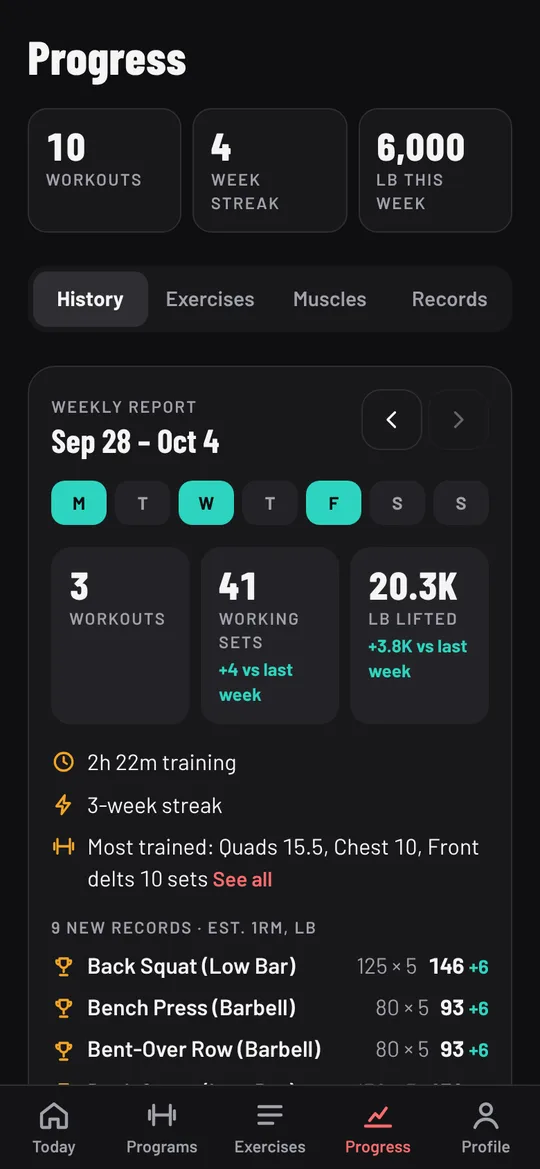
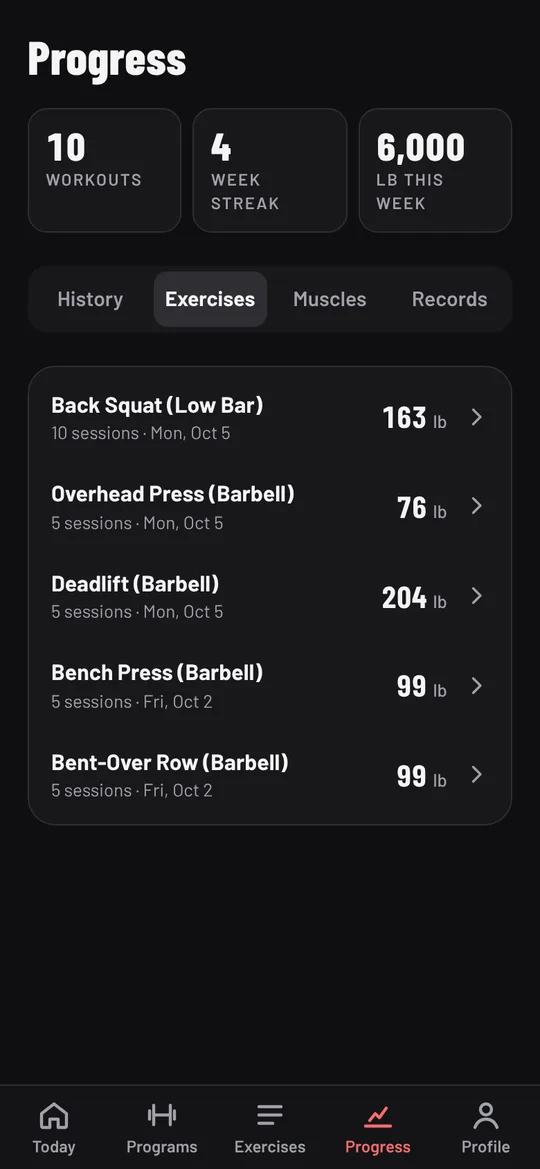
The top shows your workouts, week streak and pounds lifted this week. Four tabs below:
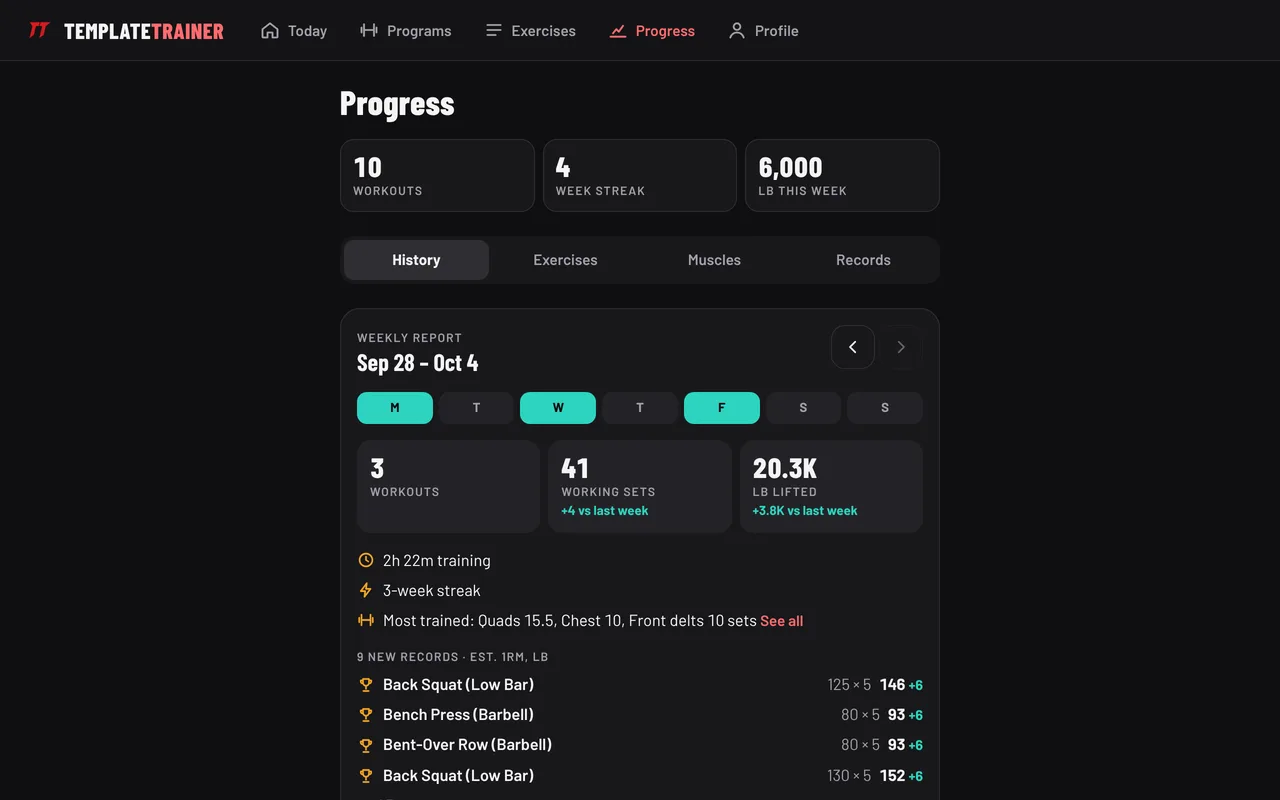
- History: the weekly report (arrows step through past weeks), your year's Wrapped, and All workouts. Tap a workout to see its sets, then Edit to fix a number or tick, or Delete to remove it. Records are worked out again either way.
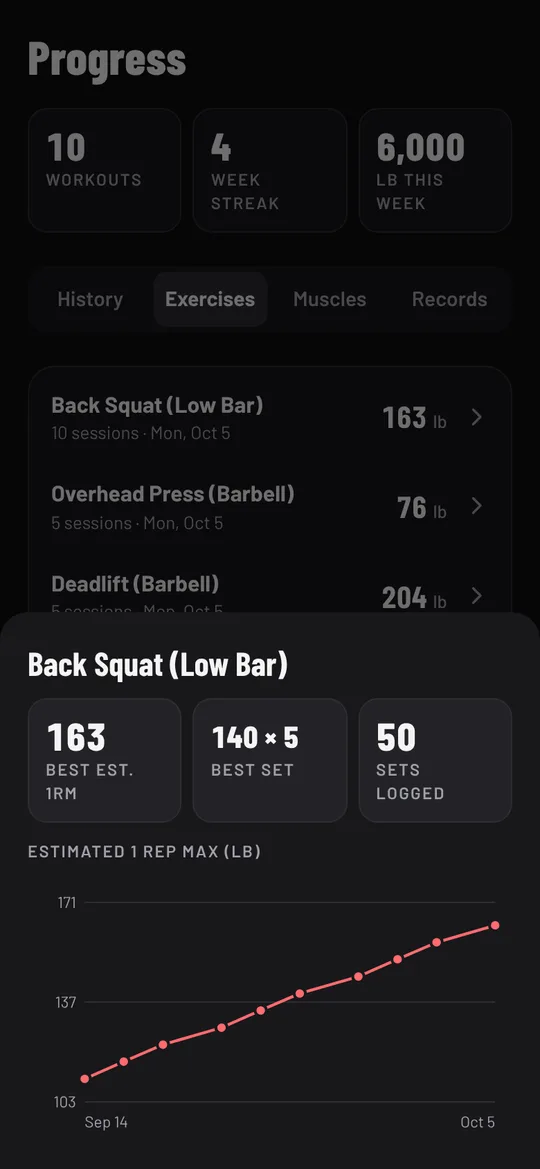
- Exercises: every exercise you've logged, with sessions and best estimated one rep max. Tap one for a chart of your estimated one rep max over time, your best set and sets logged.
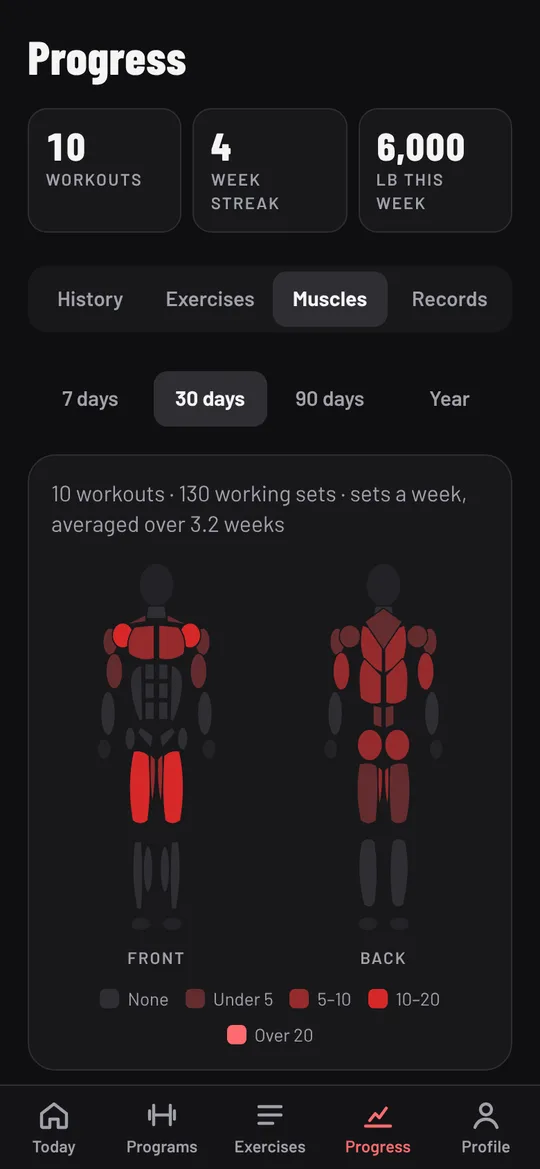
- Muscles: a body map and a list of working sets per muscle over 7 days, 30 days, 90 days or a year, with a shaded band at 10 to 20 sets a week. How this is counted explains the counting and the research behind the band. Tap a muscle to see which exercises counted.
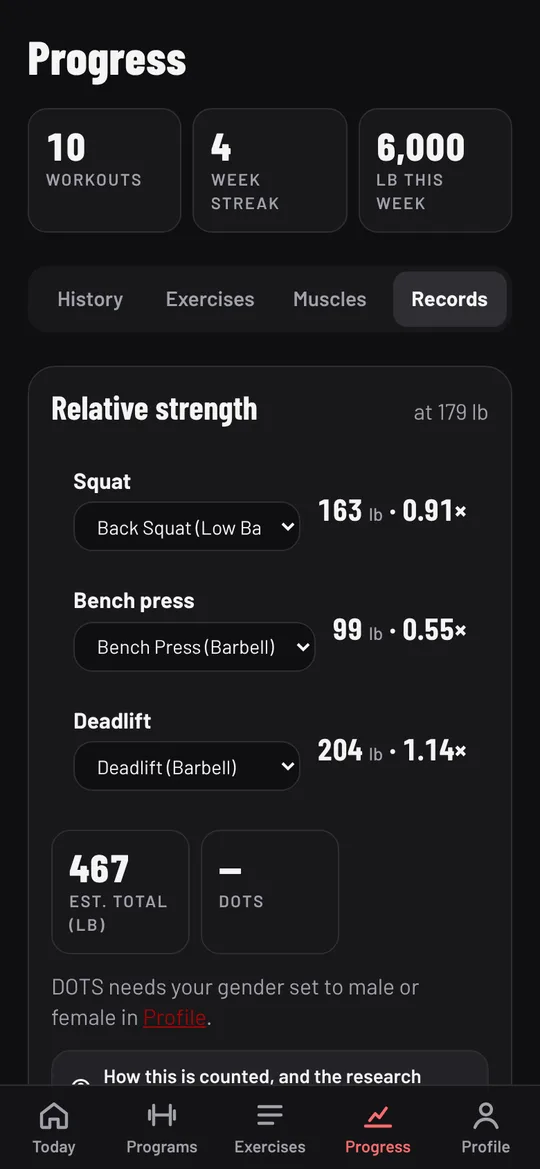
- Records: relative strength (each lift as a multiple of your bodyweight, your estimated total and DOTS score), and your records for the current program's exercises: one rep max, max reps, max duration, minimum rest and rep maxes. Your workouts raise them automatically; tap one to type it in, which is what percentage programs read.
Export your data is at the bottom of Records, and in Profile.
Profile
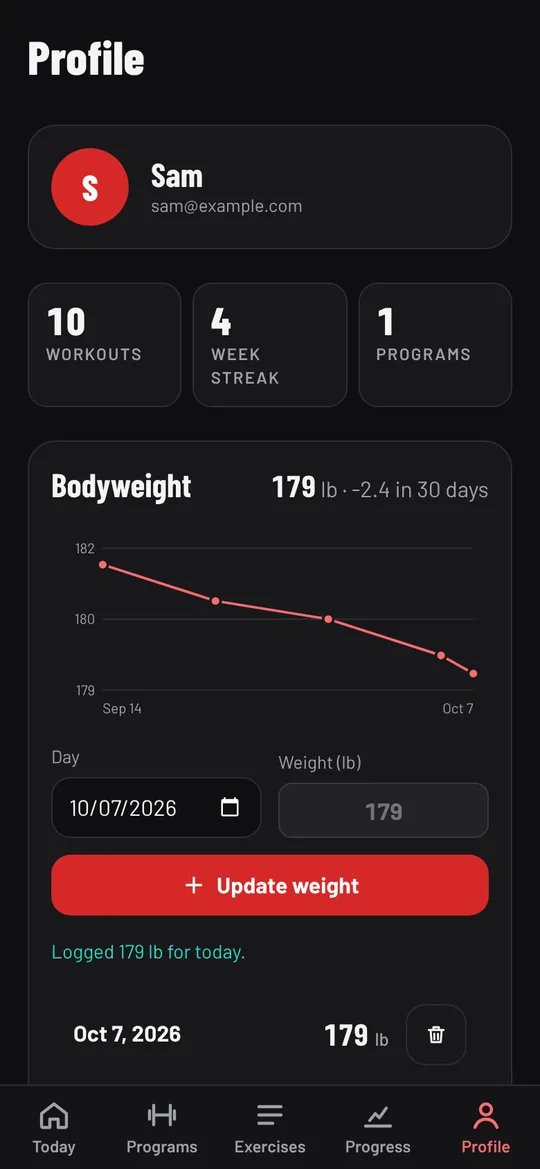
- Bodyweight: log your weight for any day up to today, see the trend chart, and delete entries. Relative strength on Progress uses it.
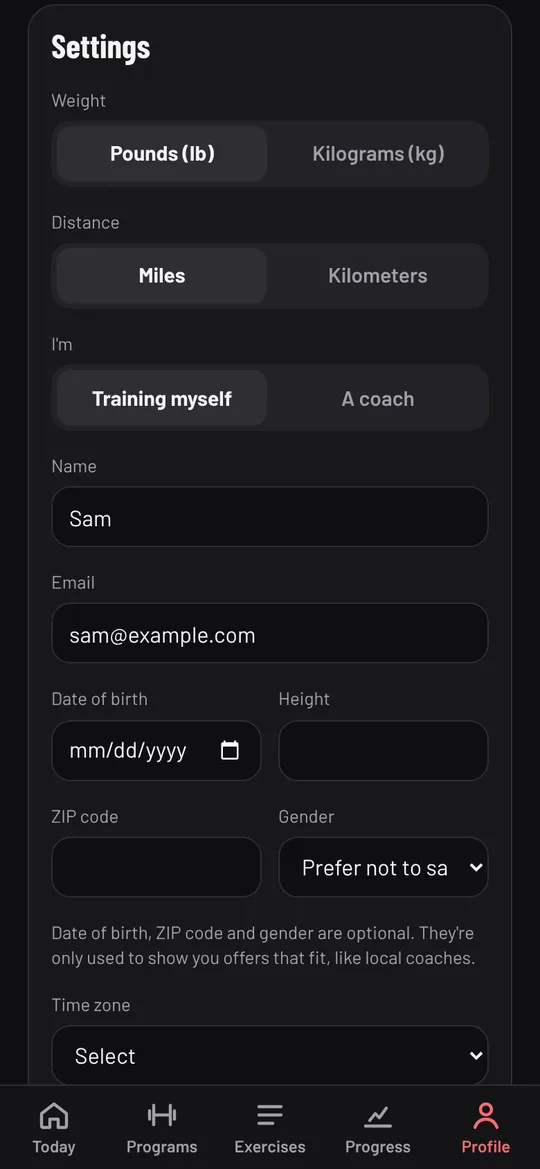
- Settings: pounds or kilograms, miles or kilometers, whether you train yourself or coach, your name and email, and optional date of birth, height, ZIP code, gender and time zone. Tap Save changes.
- Email updates: a switch for occasional news about new programs and features.
- Change password, Export workout data (a CSV of daily summaries or of every set, for spreadsheets or comparing with sleep and nutrition data), Training guides, Help and community, Log out and Delete account.
Does it work offline?
Yes. Once you've signed in on a device, you can log workouts, edit programs and change settings without a connection. A banner says you're offline and how many changes are waiting, and they're sent when you're back online. The Program Library, sharing programs, changing your password and deleting your account need a connection. To open it like an app, add it to your home screen (getting started shows how).
Frequently asked questions
How do I change pounds to kilograms?
Open Profile, choose Kilograms (kg) under Weight in Settings, and tap Save changes.
How do I fix a workout I logged wrong?
Open Progress, then History, tap the workout and tap Edit. Change the numbers or ticks and tap Save changes. Records and your next targets are worked out again.
Where do I enter my one rep max?
On Progress, then Records. Tap the lift, type your 1 rep max and tap Save records. Programs that use percentages read it from there.
Can I use Template Trainer on more than one device?
Yes. Sign in on each one. Your programs and history sync through your account.
How do I delete my account?
Open Profile, scroll to the bottom and tap Delete account. It deletes your programs and workout history and can't be undone.
About the author
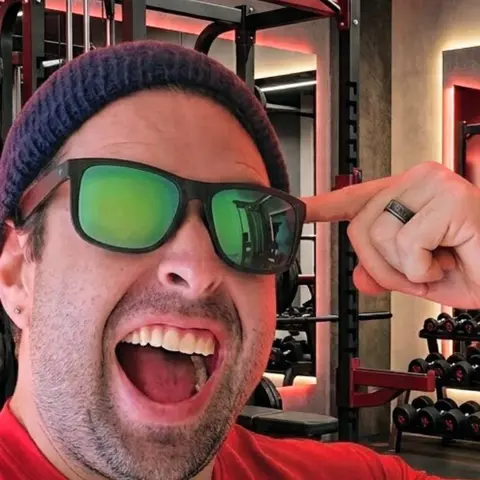
Jordan DuBois has been lifting for 20 years and won the men's open lightweight class at the 2013 NPC Natural Western in Arizona as a natural, after placing 2nd at the 2011 NPC Western Regional. Jordan holds summa cum laude degrees in applied mathematics and biology from Arizona State University, and founded Template Trainer to run proven programs the way their authors wrote them.