 Template
How to create a workout program in Template Trainer
Build your own program in Template Trainer: workouts, sets, supersets, a repeating schedule and progression rules that raise your weights for you.
A program in Template Trainer has three parts: workouts (the exercises and sets you do in a session), a schedule (the order you do the workouts in, which repeats), and logic (rules that change your weights or reps based on how earlier sessions went). This guide builds a real four-day upper/lower program with all three. Every step works the same on a phone or a computer.
Want something ready-made instead? Add a program from the library (getting started shows how) and edit it the same way.
How does a Template Trainer program work?
| Part | Where | What it is |
|---|---|---|
| Workouts | Workouts tab | Named sessions, like "Upper", each with exercises, sets, reps, weight, time and rest |
| Schedule | Schedule tab | Days 1, 2, 3... each running one workout. After the last day the cycle starts again |
| Logic | Logic tab | Rules on a day that read earlier days, like "if day 1's bench sets were all made, add 5 lb" |
| Details | Details tab | Name, notes, how often you train, tags, and how much each muscle gets worked |
There are no calendar dates or weeks: the schedule is a cycle of days, done in order whenever you train. A "week" is however many days you do in one. A workout can appear on as many days as you like.

Step 1: Start a new program
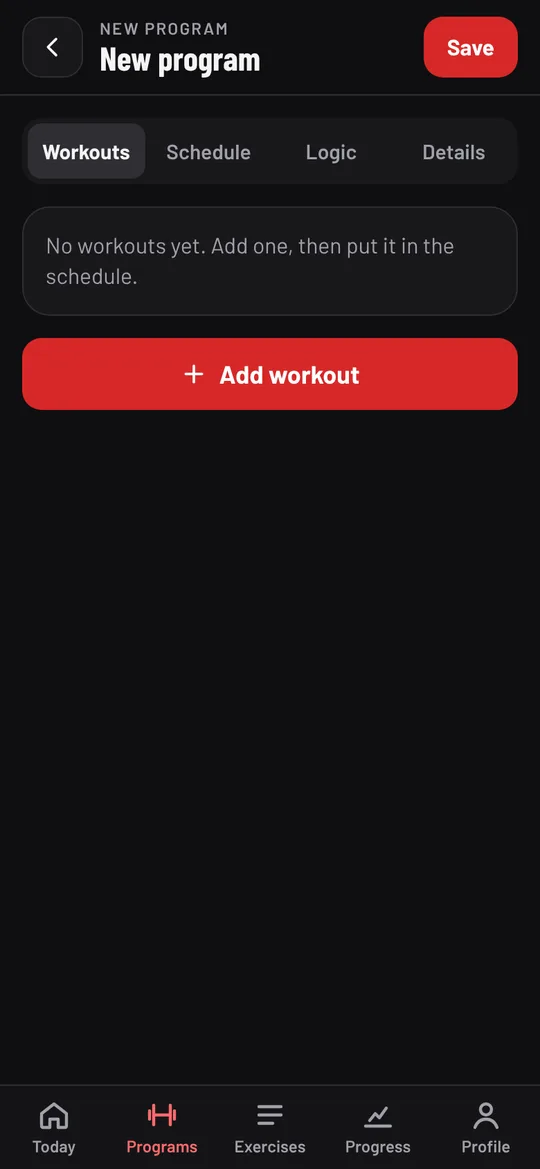
- Tap Programs, then New.
- A draft called "New program" opens on the Workouts tab. Nothing is saved until you tap Save at the top, so you can try things freely.
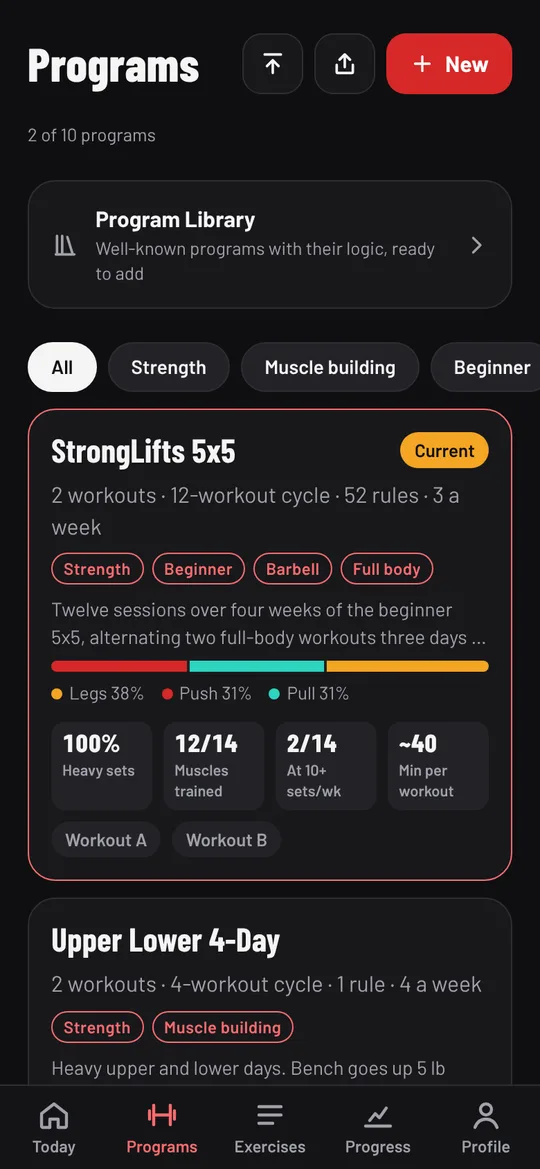
You can have up to 10 programs. The counter on the Programs screen shows how many you have.
Step 2: Add a workout
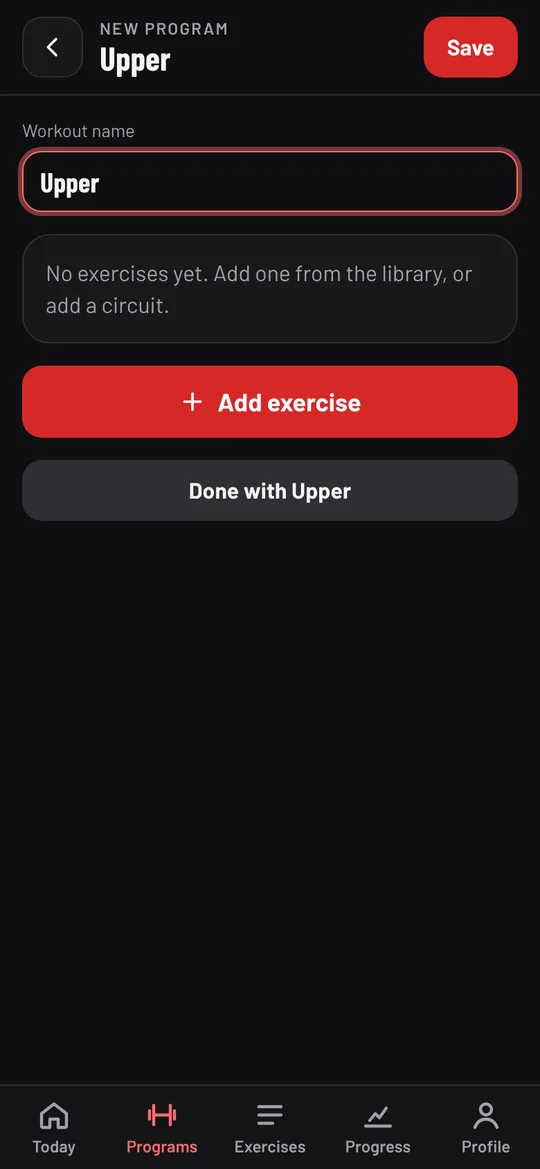
Tap Add workout. It opens as "Workout 1"; type a name in Workout name, such as "Upper".
Step 3: Add exercises and sets
- Tap Add exercise and search by name, muscle or equipment, for example "bench press".
- Tap the exercise. It's added with one set.
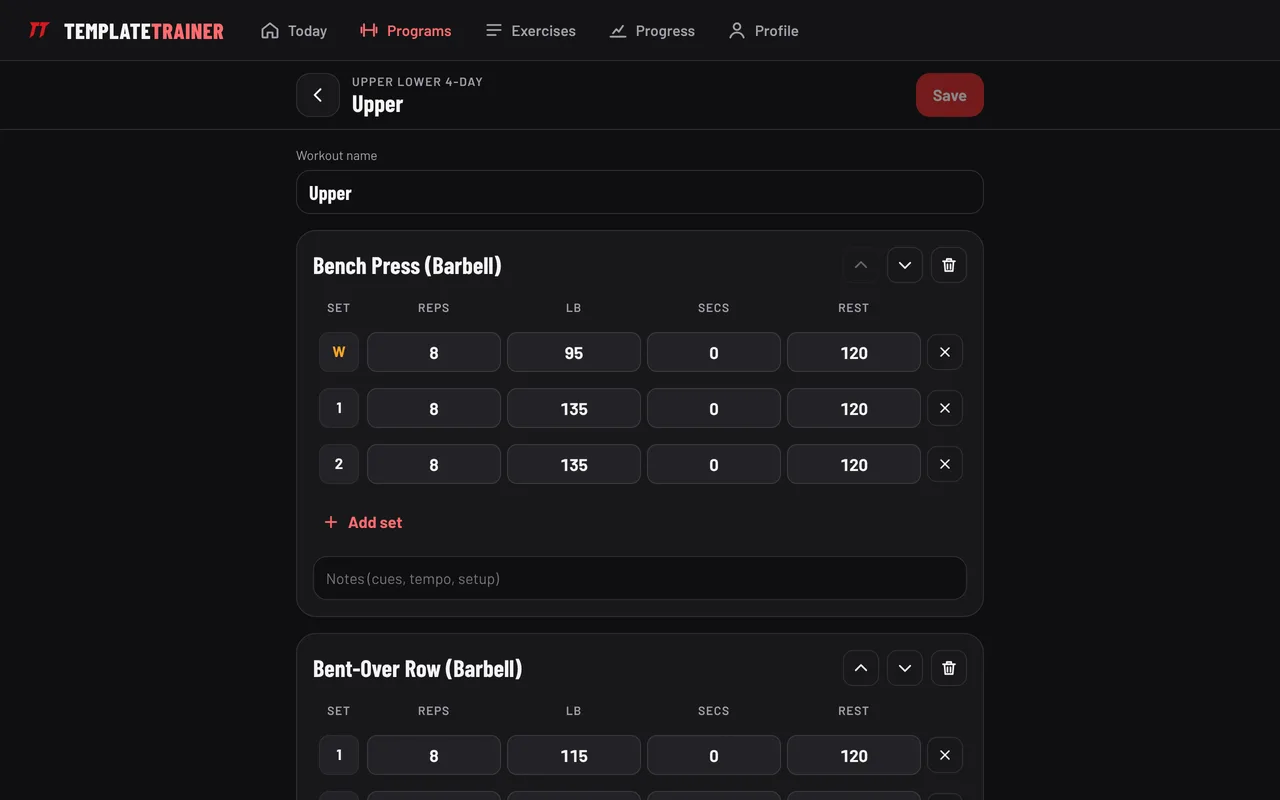
- Fill in the set: Reps, weight (LB or KG, from your Profile setting), Secs for timed exercises like planks, and Rest in seconds.
- Tap Add set to copy the last set, as many times as you need. Change any set's numbers to make pyramids or back-off sets.
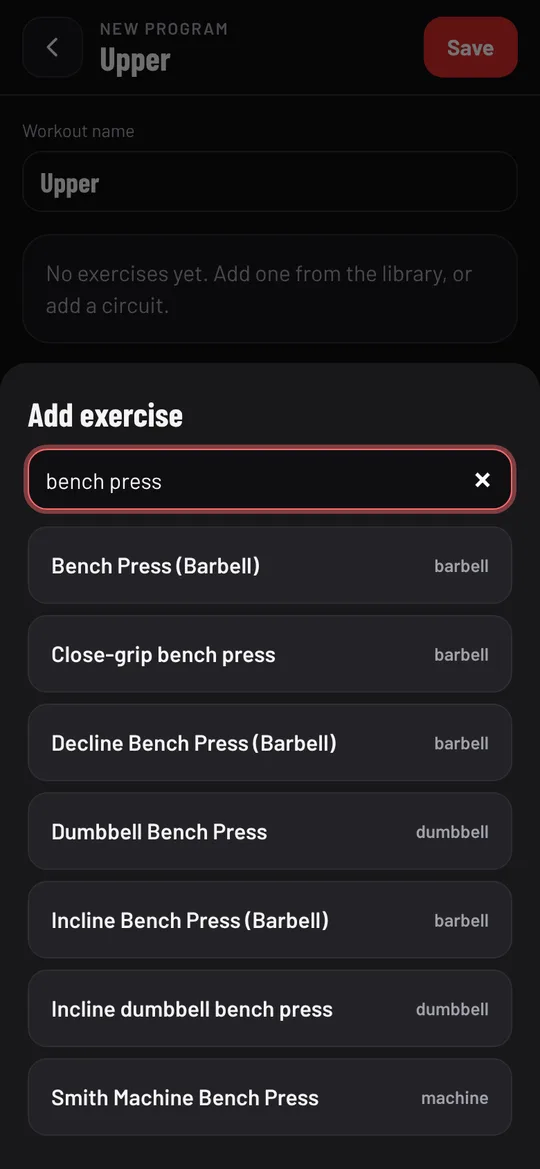
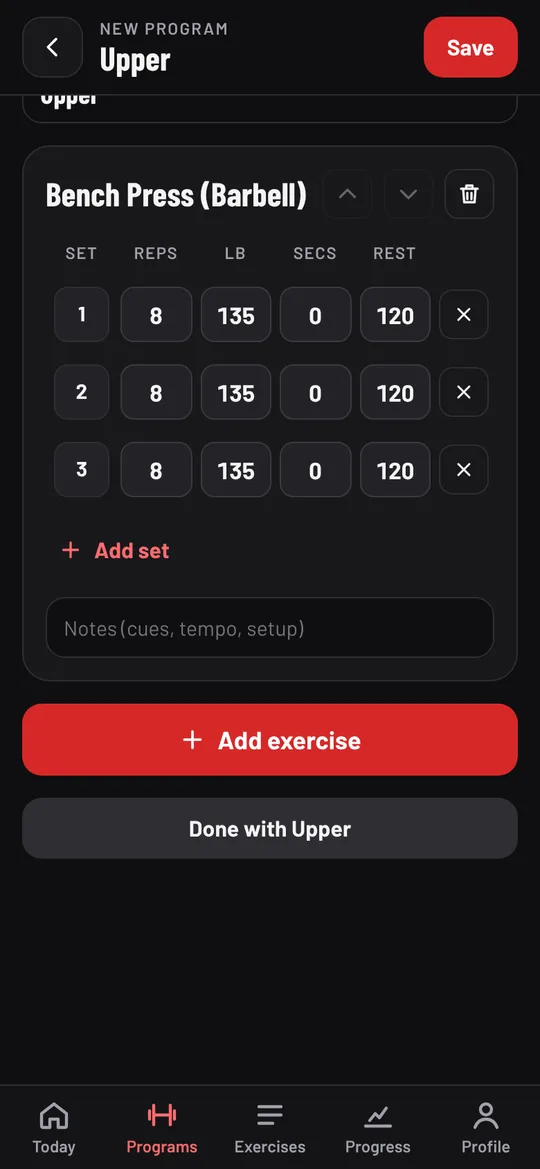
Here's that whole step, from a new program to three sets of bench press:
Can't find an exercise? Create it in the Exercises tab with New, then add it here. Use the arrows on an exercise to move it up or down, the bin to remove it, and the Notes box for cues like tempo or setup.
Set types: warm-up, AMRAP, pyramid and drop sets
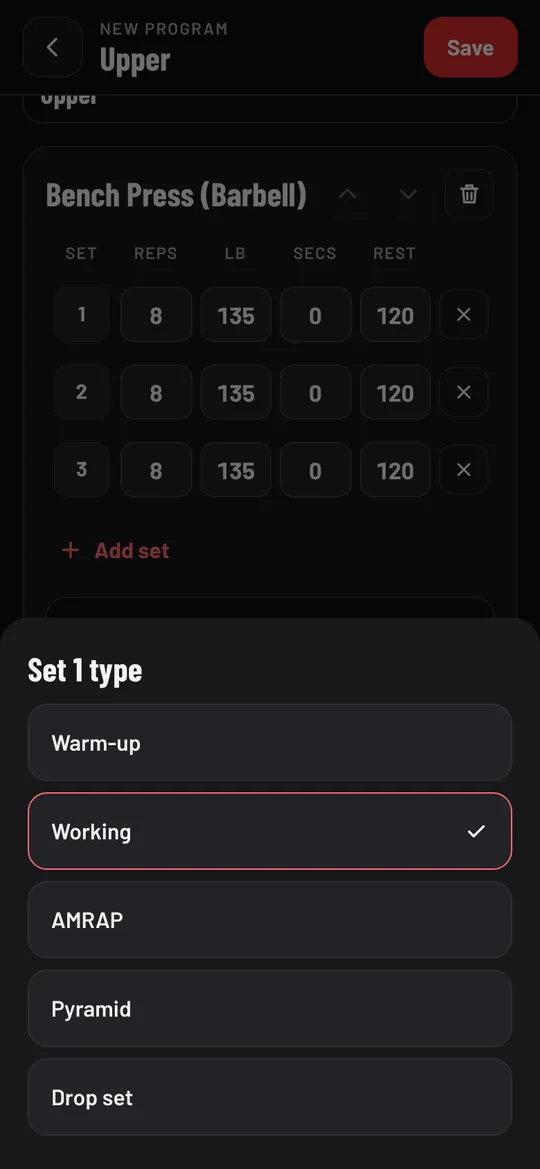
Tap a set's number to change its type: Warm-up, Working, AMRAP (as many reps as possible), Pyramid or Drop set. Warm-ups show as "W" and are left out of working-set counts and rules that look at working sets. An AMRAP set's reps box says "max" during the workout, so you type what you got.
Supersets and circuits
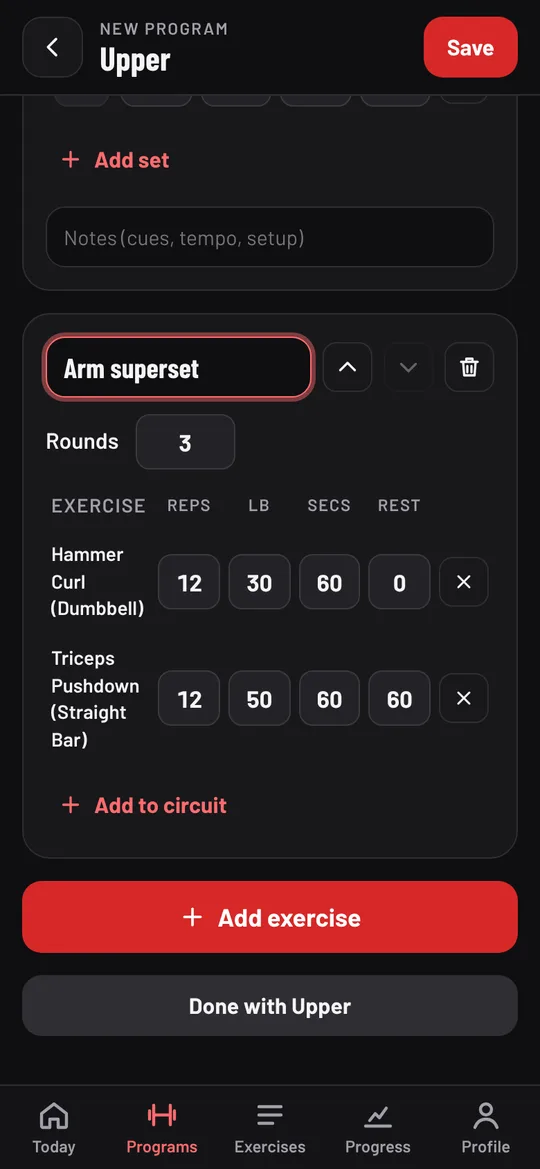
To do exercises back to back, tap Add exercise, then Circuit at the top of the list. Name it, set the Rounds, and tap Add to circuit for each exercise. Each one has its reps, weight, work time (Secs) and Rest. For a superset, set the first exercise's rest to 0 so you go straight to the second.
During the workout, a circuit has its own timer that counts each exercise's work and rest, calls out "3, 2, 1, Go" and "Rest", and ticks off each round. How to do a circuit workout covers how to plan one.
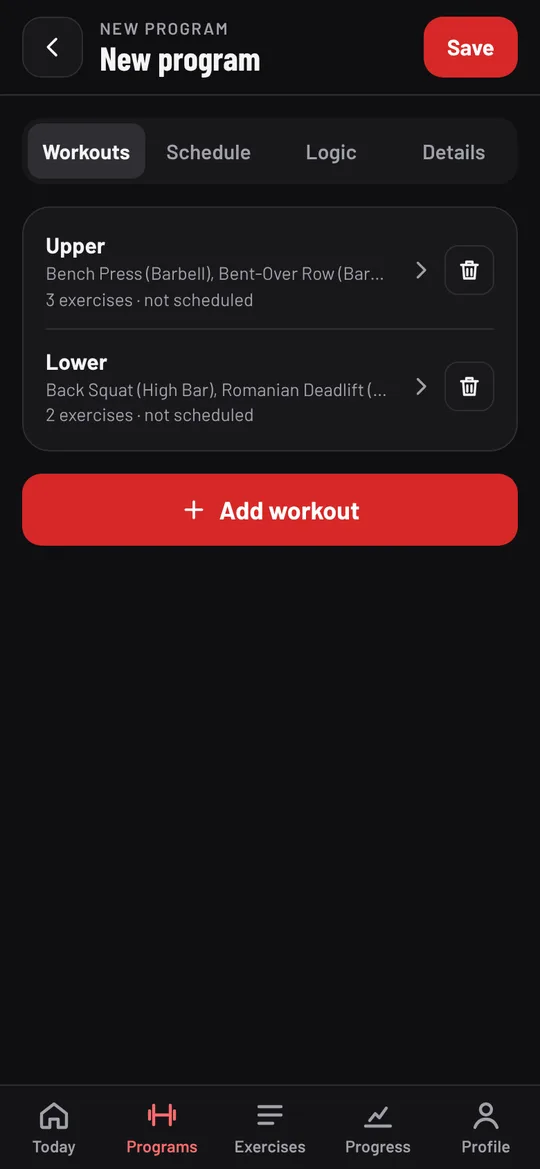

When the workout is done, tap Done with Upper, then Add workout again for the next one (here, "Lower" with squats and Romanian deadlifts).
Step 4: Put the workouts in order on the Schedule tab

- Open the Schedule tab and tap Add day.
- Pick the workout for that day. Repeat for every day of your cycle.
- Use the arrows to reorder days and the bin to remove one.
For a four-day upper/lower split, add Upper, Lower, Upper, Lower. The app shows "Your cycle is 4 days long", and after day 4 it starts again at day 1. Today always shows the next day in this order.
Each day can have its own rules, so a program that changes from week to week (like 5/3/1) lists every day of the block: day 1 to 16 for a four-week, four-day program. Moving or removing a day moves or removes its rules too, and the app tells you first.
Step 5: Add progression rules on the Logic tab
Rules are what make Template Trainer fill in your weights. A rule belongs to one exercise on one day, and checks how that exercise (or another) went on an earlier day. It needs at least two days in the schedule: one to check and a later one to change.
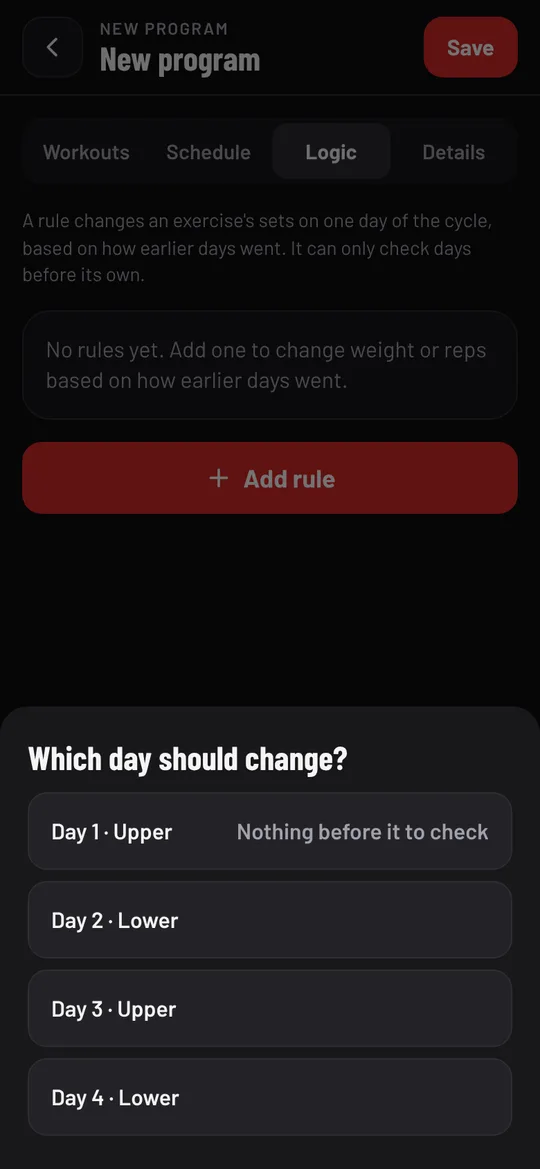
- Open Logic and tap Add rule.
- Pick the day to change (here, Day 3 · Upper; day 1 has nothing before it to check), then the exercise (Bench Press).
- The rule starts with a sensible default: check the same exercise on the latest earlier day it appeared, and if the working sets made their planned reps, add 5 lb to the weight on the working sets.
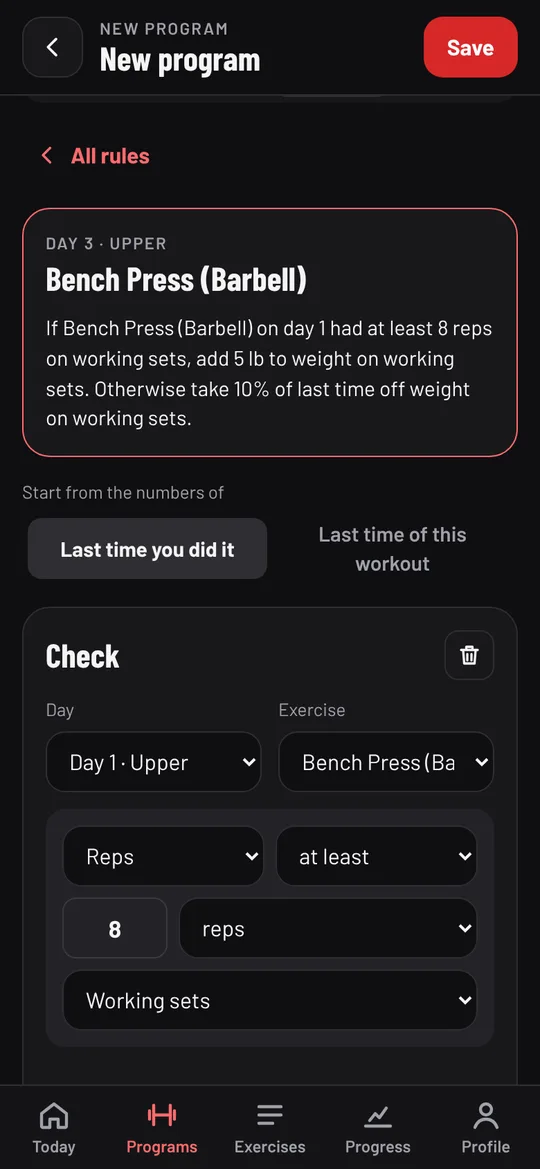
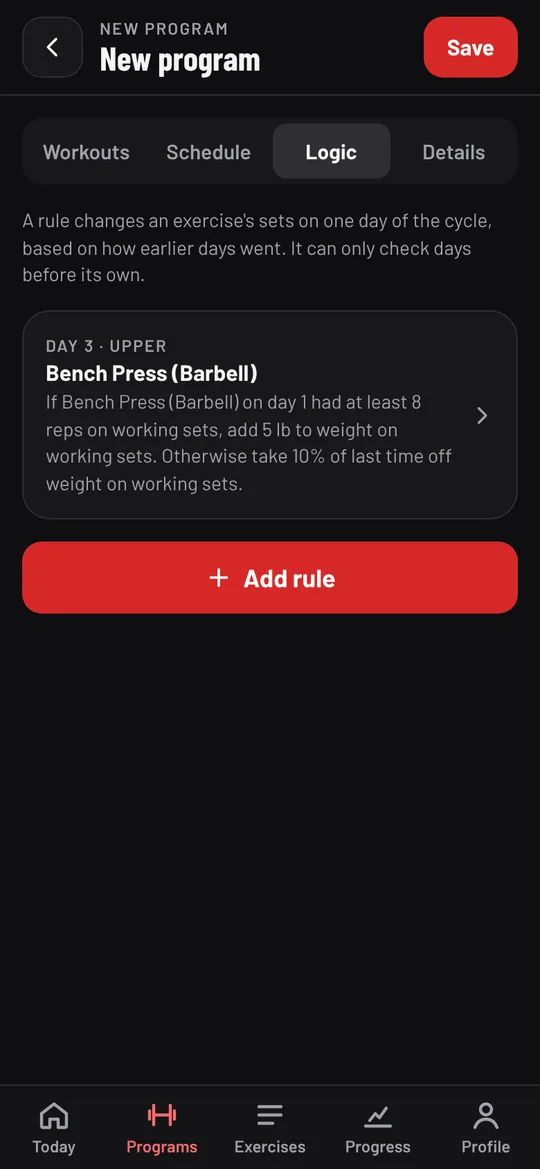
The rule reads as a sentence at the top, so you can check it says what you mean: "If Bench Press (Barbell) on day 1 had at least 8 reps on working sets, add 5 lb to weight on working sets. Otherwise take 10% of last time off weight on working sets."
What each part of a rule does
- Start from the numbers of: "Last time you did it" (any workout) or "Last time of this workout". The change is applied to those numbers.
- Check: a day and an exercise, and one or more conditions: Reps, Weight, Time, Rest or Sets logged, compared with at least, more than, exactly, at most or less than a value, on Working sets, All sets, the Last set, or sets you pick. Add more checks with Add another check and choose whether every check or any check must pass.
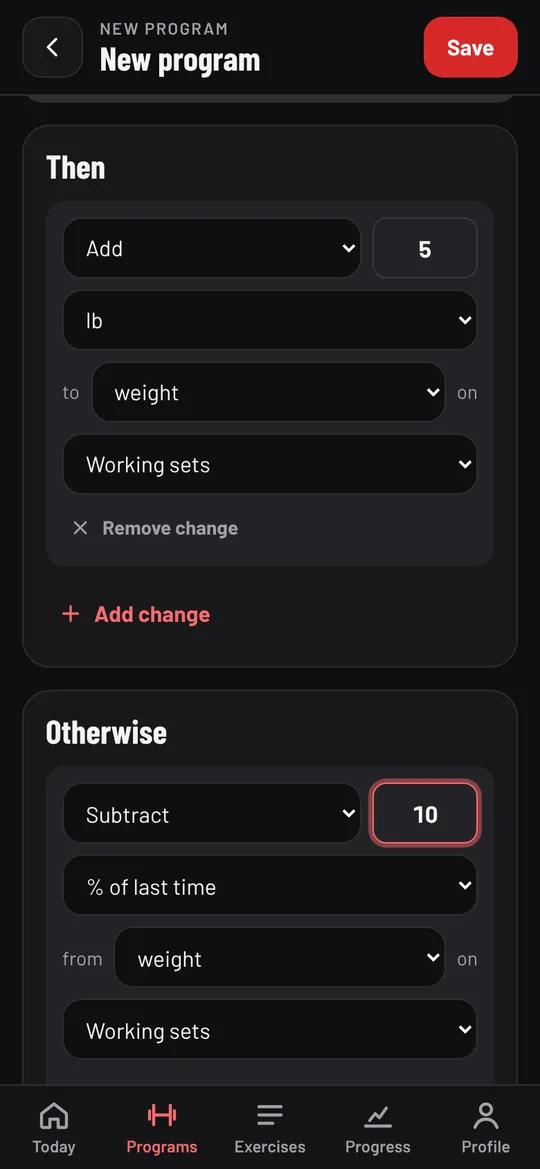
- Then: what changes when the checks pass (add as many changes as you like): Add, Subtract or Set to an amount, in lb or kg, reps, seconds, % of last time, or % of record, for weight, reps, time or rest, on the sets you choose.
- Otherwise: what changes when they don't. Leave it empty to repeat the same numbers, or use it to deload, as below.
Common rules and how to write them
| Goal | Then | Otherwise |
|---|---|---|
| Linear progression (add weight every session) | Add 5 lb to weight on working sets | Leave empty (repeat the weight) |
| Deload after a miss | Add 5 lb to weight | Subtract 10 % of last time from weight |
| Double progression (reps, then weight), checking reps at least 12 | Add 5 lb to weight, and Set reps to 8 | Add 1 to reps |
| Percentage programs (5/3/1, Sheiko) | Set weight to 85 % of record (1 rep max) on the sets you choose | Not needed |
| Add rest when sets get hard | Add 15 to rest | Leave empty |
How the app runs your rules:
- % of record uses your own records from Progress, then Records. With no record yet, the program's own numbers stand, so type your 1 rep max there before a percentage program.
- % of last time rounds weights to 5 lb or 2.5 kg, and always moves at least one step.
- Only workouts done on their scheduled day count. Picking a different workout from Today doesn't run rules or move your place.
- If two rules change the same exercise on the same day, the first one whose checks pass wins.
- Rules run on Template Trainer's server, or on your phone when you're offline.
For the thinking behind these rules, see progressive overload and how to deload.
Step 6: Fill in Details and save
On the Details tab:
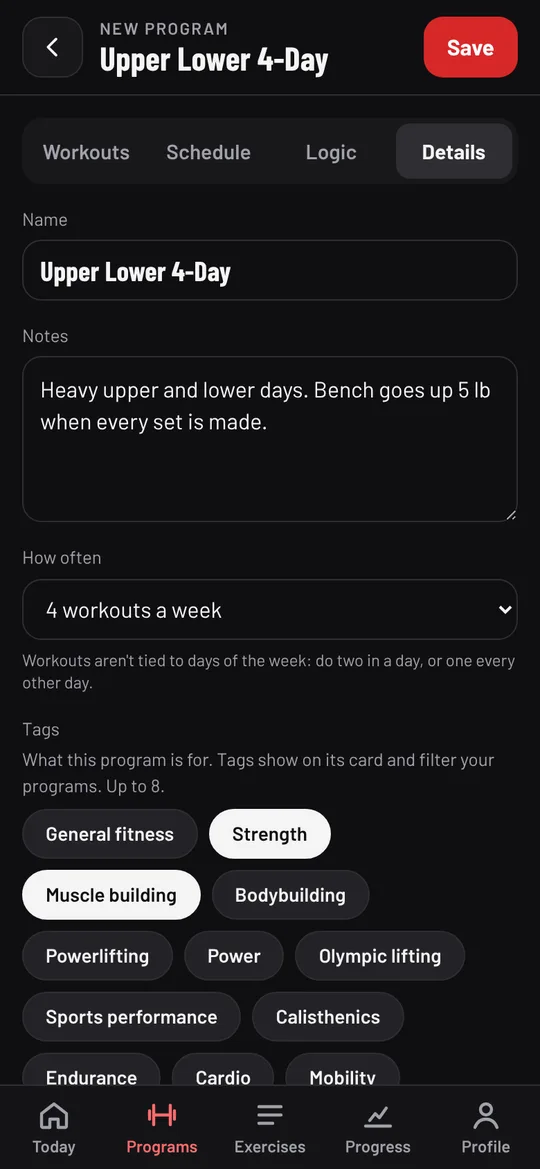
- Name and Notes (goals, phases, how the progression works).
- How often: from 1 to 14 workouts a week, every other day, or every third day. It's a guide for the program's weekly numbers; workouts aren't tied to days of the week.
- Tags like Strength or Muscle building, or your own. Tags show on the program's card and filter your Programs list.
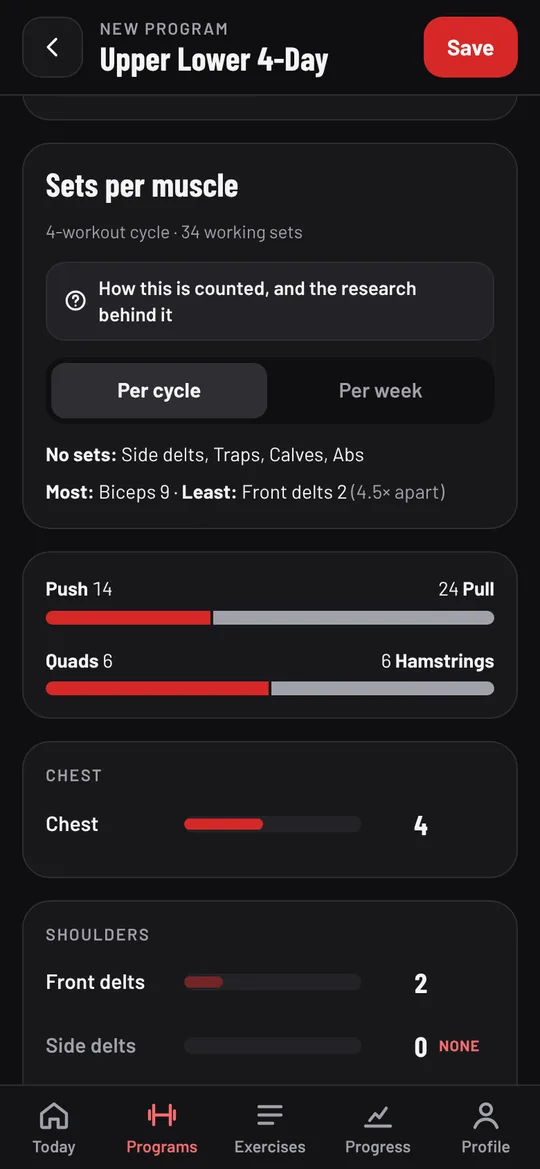
- Program profile and Sets per muscle: how many working sets each muscle gets per cycle or per week, with Low (under 10 a week) and Above (over 20) flags, and push/pull and quads/hamstrings balance. Use it to spot a muscle you've left out.
Tap Save. The button shows "Saved", and the program appears in your Programs list. If you leave with unsaved changes, the app asks first.
To train it, tap Switch on Today's Current program card and pick it.
Share, export and import programs
- Share a copy (Details tab) sends a copy to another Template Trainer member by their account email. It shows up under "Shared with you" on their Programs screen.
- Download program file saves it as a
.program.jsonfile. - Import a program file (the upload icon on Programs) adds one. The app shows which exercises it matched and adds any it doesn't know to your exercises.
- Delete program removes it. Your logged workouts stay in your history.
On a computer, the editor shows the workout and its sets side by side with more room:
Frequently asked questions
Can I edit a program from the library?
Yes. Programs from the library are yours once added: change any workout, set, day or rule, then tap Save. To keep the original too, tap Add another copy in the library.
How do I make a deload week?
Either add the deload days to the schedule with lighter sets (and rules that set the weight to a percentage of your record or of last time), or use a rule's Otherwise part to take weight off after a missed session. How to deload explains when to do which.
How do I do supersets?
Add a Circuit with the two exercises and set the first one's rest to 0. Set Rounds to the number of supersets.
Why didn't my weights go up?
Check three things: the workout was done on its scheduled day (not picked with Change), the sets were ticked as done, and the rule's check matches what you logged (for example "at least 8 reps on working sets"). A rule's sentence on the Logic tab shows exactly what it checks.
Can I change a program while I'm running it?
Yes. Edits apply from your next workout. Logged workouts aren't changed. Moving or removing days asks first, because their rules move or go with them.
About the author

Jordan DuBois has been lifting for 20 years and won the men's open lightweight class at the 2013 NPC Natural Western in Arizona as a natural, after placing 2nd at the 2011 NPC Western Regional. Jordan holds summa cum laude degrees in applied mathematics and biology from Arizona State University, and founded Template Trainer to run proven programs the way their authors wrote them.