 Template
Getting started with Template Trainer
Create a free account, add a program from the library, and log your first workout in Template Trainer, step by step with screenshots of each screen.
This guide takes you from no account to your first logged workout in about five minutes. You'll create an account, add a ready-made program, and log a session. For every screen in the app, see the full app guide. To build your own program instead, see how to create a program.
What do you need?
Only a web browser. Template Trainer runs on phones, tablets and computers, and you can add it to your home screen like an app (see the last step). It's free, with up to 10 programs per account.
Step 1: Create your account
- Go to templatetrainer.com and choose Create account.
- Enter your name, email and a password, then type the password again.
- Tick Email me Template Trainer updates only if you want news about new programs and features. It's off unless you tick it.
- Tap Create free account.

You stay signed in on that device until you log out. If you forget your password, tap Forgot password? on the sign-in screen and the app emails you a link to choose a new one. The link works once, for an hour.
Step 2: Skip or finish your profile
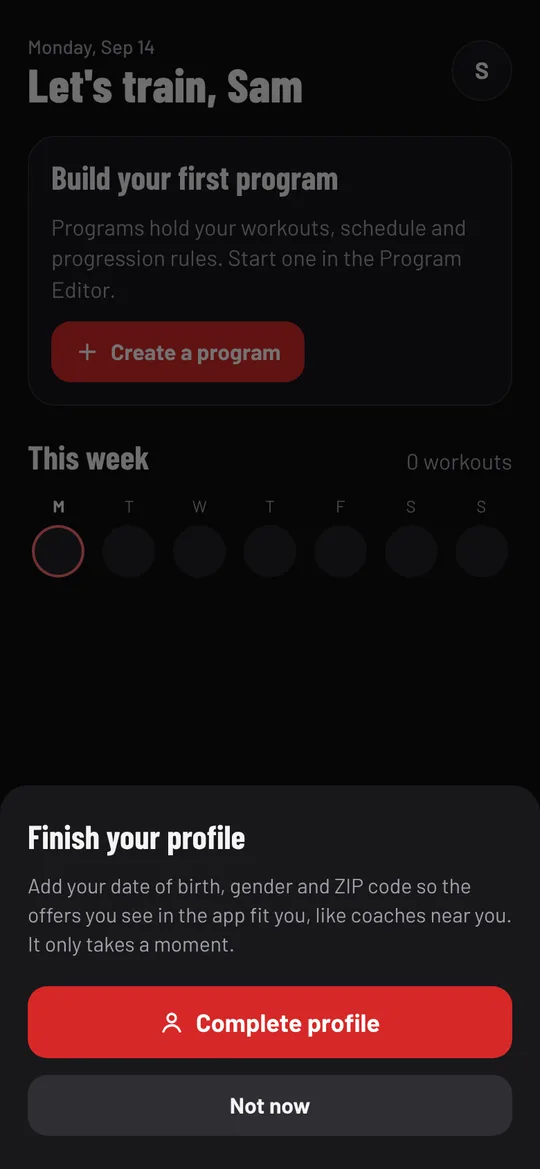
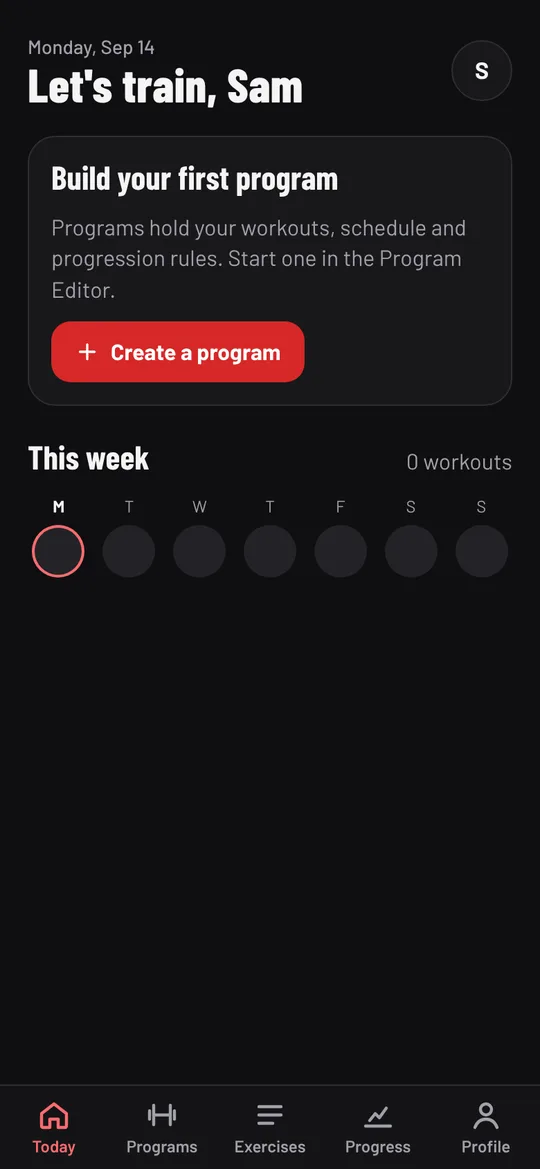
After signing up you land on Today, and a Finish your profile sheet asks for your date of birth, gender and ZIP code. They're optional and only used to show offers that fit you, like local coaches. Tap Not now to skip it, or Complete profile to add them.
Step 3: Add a program from the library
A program holds your workouts, the order you do them in, and the rules that move your weights up. The quickest start is a proven program from the Program Library.
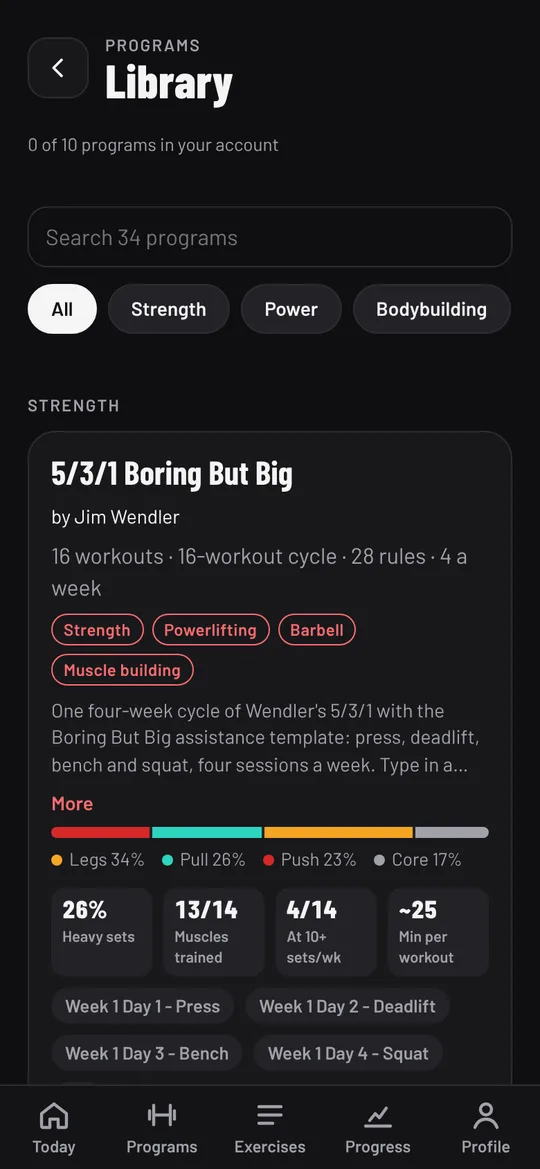
- Tap Programs in the tab bar, then Browse the program library.
- Search, or filter by Strength, Power, Bodybuilding, General fitness or Conditioning. Each card shows how many workouts and days a week it takes, its rules, and which muscles it trains.
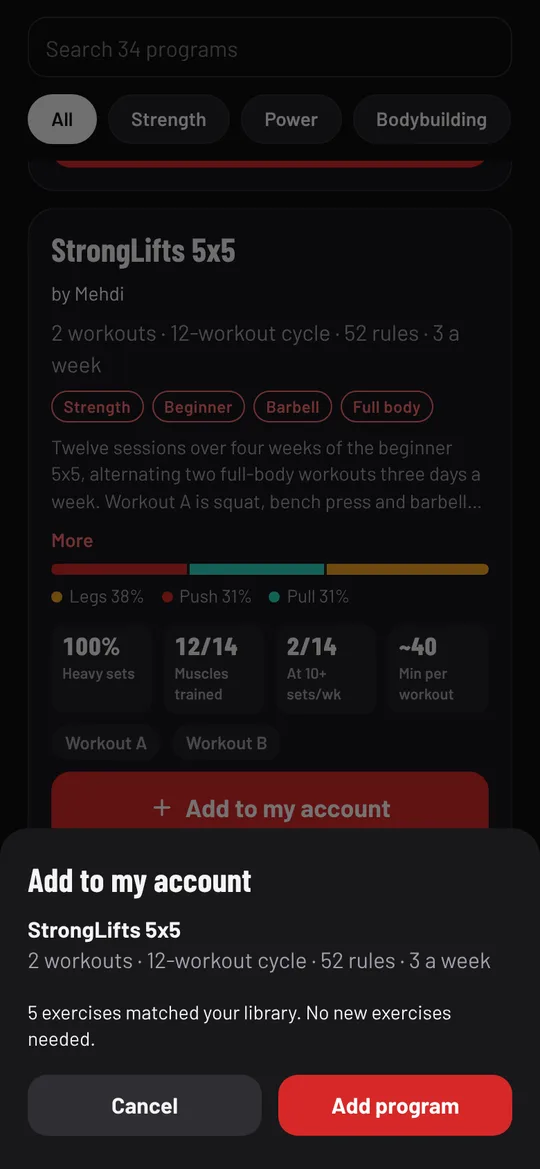
- Tap Add to my account on the program you want. A review sheet shows which exercises it uses; tap Add program.
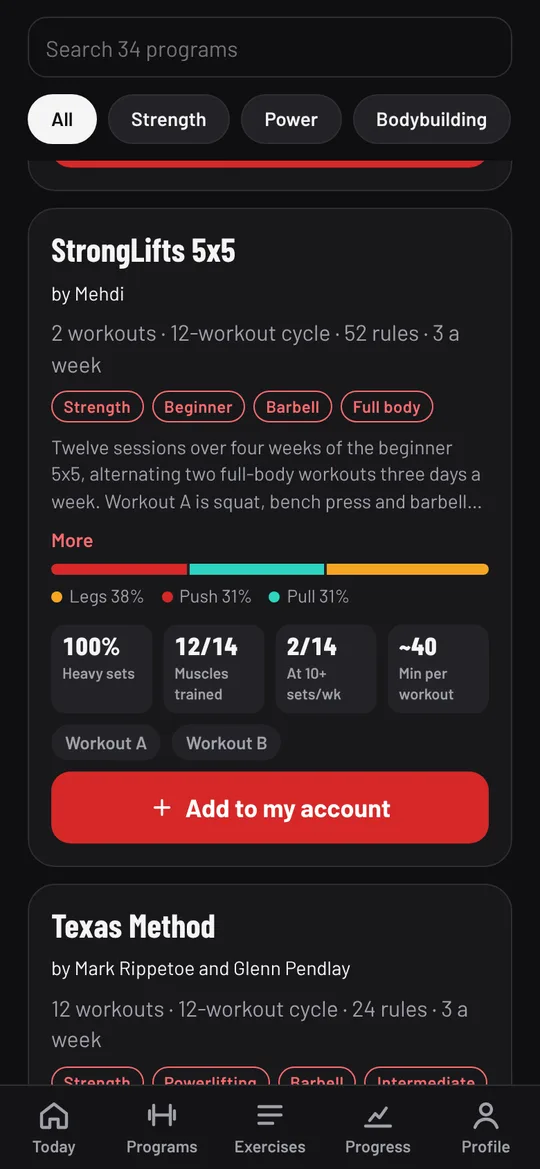
Not sure which one to pick? Beginners do well on a simple full-body program like StrongLifts 5x5, which this guide uses. How to choose a workout program helps you decide, and the workout templates page lists every program in the library.
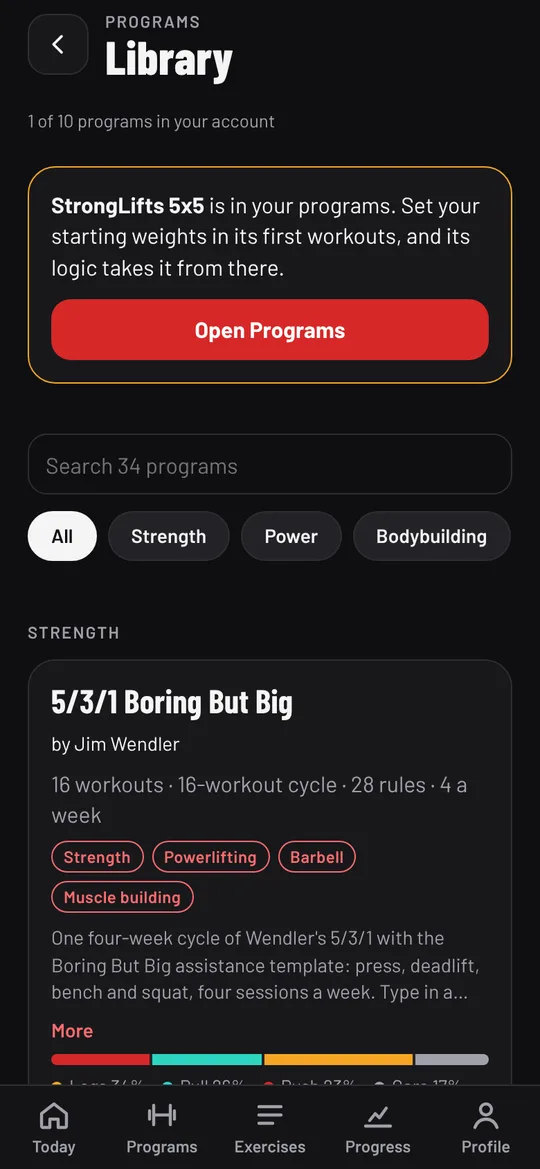
Step 4: Set your starting weights
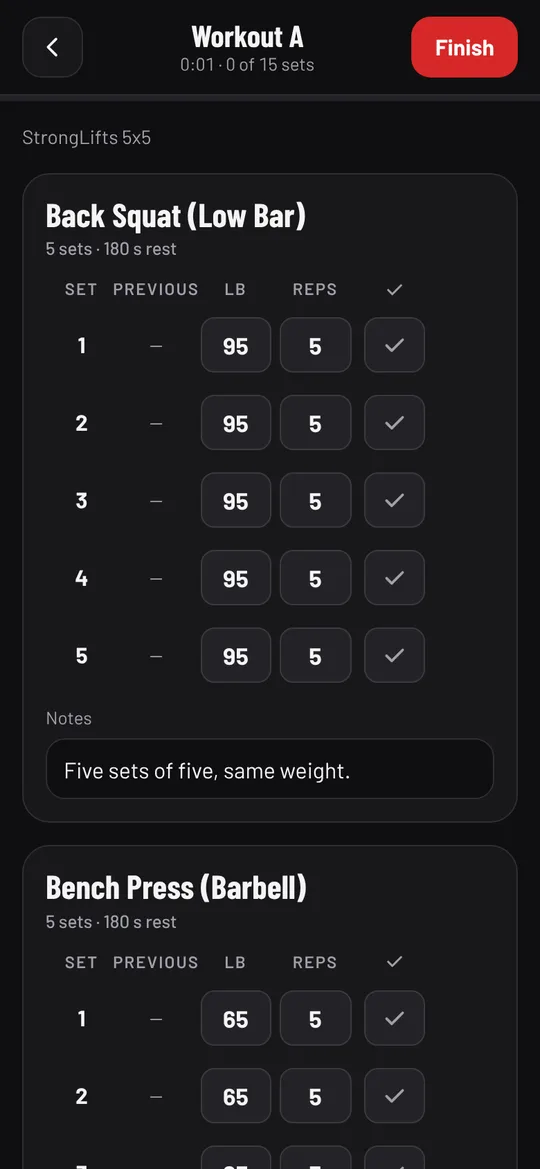
The app says it straight away: set your starting weights in the program's first workouts, and its rules take it from there. StrongLifts starts light (95 lb squats, 65 lb bench press and rows), which suits most beginners. To change them, open Programs, tap the program, tap a workout, change the numbers in the LB column and tap Save. How to create a program shows that screen.
Programs built on percentages, like 5/3/1, nSuns or Sheiko, work out their weights from your one rep max instead. Before your first session, open Progress, then Records, tap each main lift and type your 1 rep max.
Step 5: Start your first workout
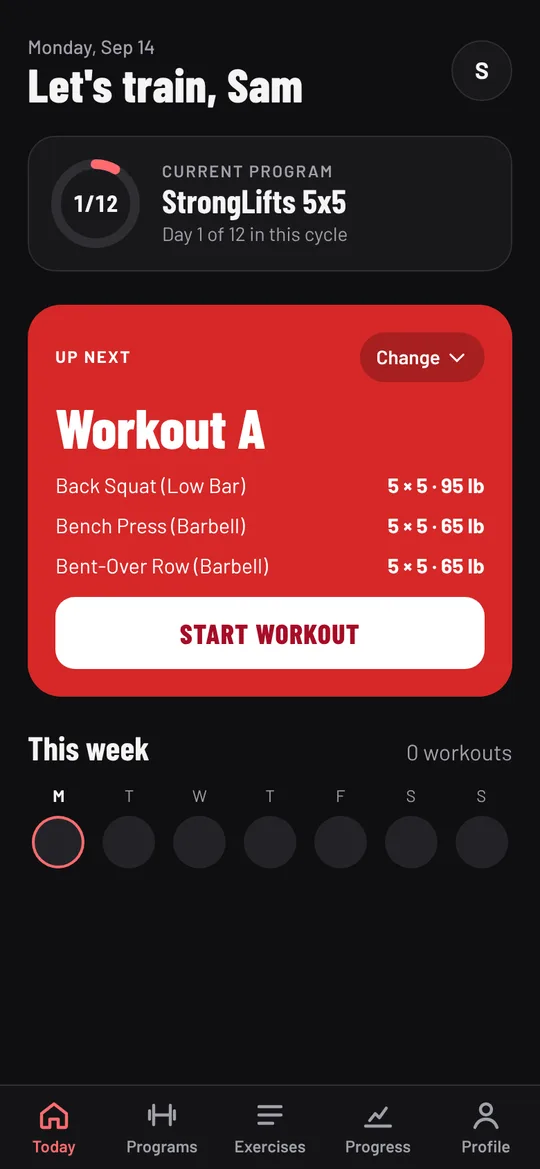
Today now shows your current program, where you are in it ("Day 1 of 12 in this cycle") and Up next, the next workout in the schedule with its exercises and planned sets. Tap Start workout.
To do a different workout, tap Change and pick one. A workout done out of order doesn't run the progression rules or move your place in the schedule.
Step 6: Log each set
Each exercise lists its sets with the weight and reps to do. The Previous column shows what you did last time.
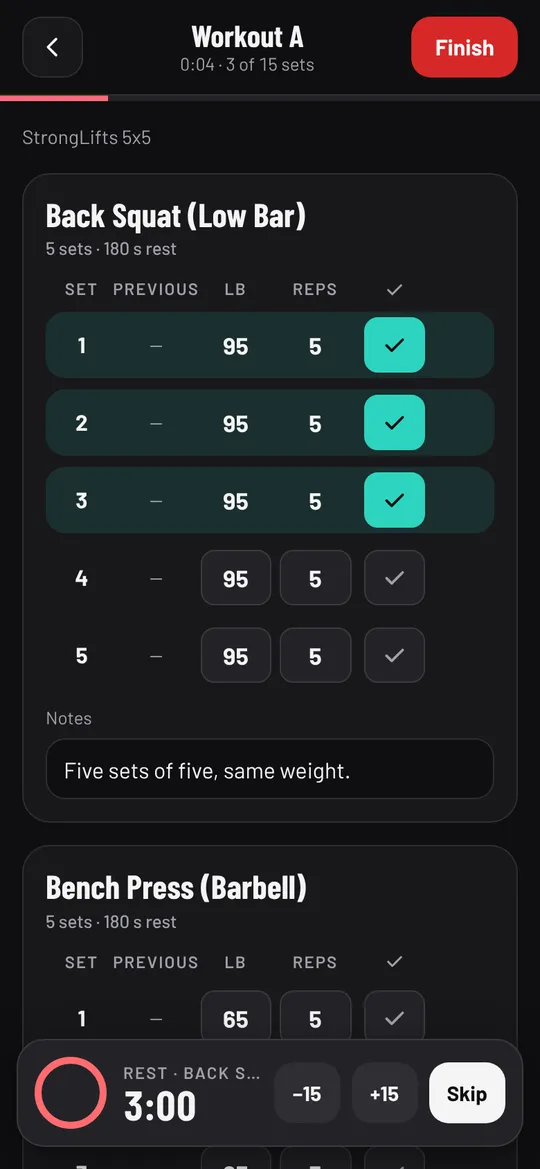
- Do the set. If you did a different weight or number of reps, change the numbers first.
- Tap the tick at the end of the row. The row turns green.
- A rest timer starts at the bottom. Tap −15 or +15 to change it, or Skip. It counts you in with "3, 2, 1, Go" when rest is over.
Everything you enter is saved on your phone as you go, so you can lock the screen, switch apps, or even lose signal. The header shows the time and how many sets are done. The Notes box under each exercise is for how it felt.
Step 7: Finish and save
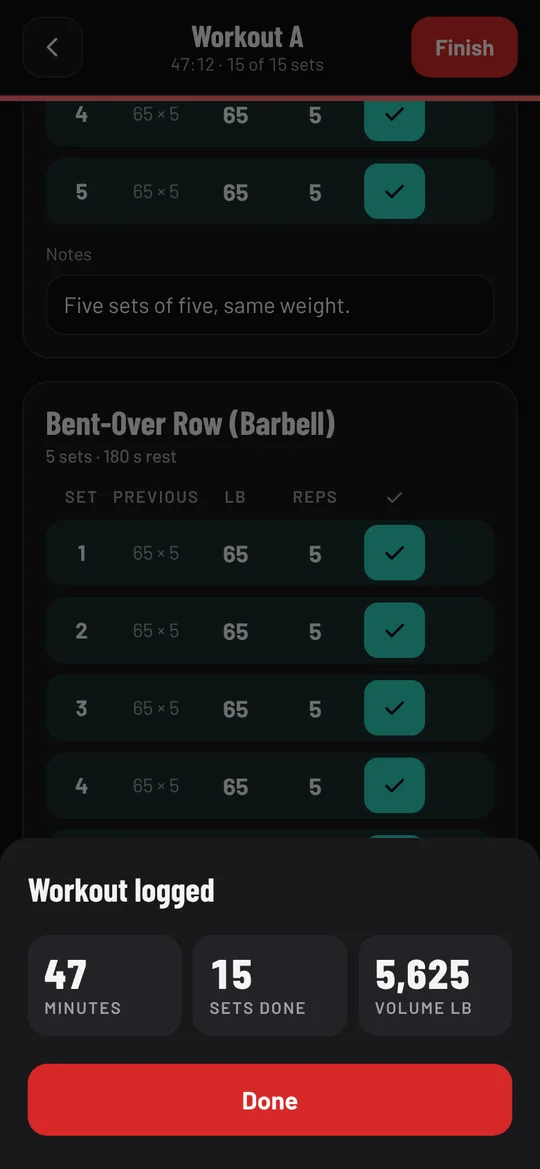
Tap Finish workout at the bottom (or Finish at the top). If some sets aren't ticked, the app asks first, and they're saved as not done. The Workout logged summary shows the minutes, sets done, total volume, and any new records.
Need to stop partway? Tap the back arrow and choose Leave for now. The workout waits on Today as In progress until you resume it or discard it.
What happens next time?
Your place in the program moves on to the next day. When you start it, the program's rules read your last sessions and set today's weights: in StrongLifts 5x5, every lift where you made all five sets of five goes up 5 lb (10 lb for the deadlift). Those workouts show a Progression applied badge and "+5 lb vs last time" under each lift.
Your history, charts and records fill in on Progress as you train. The full app guide walks through them.
Add Template Trainer to your home screen
Template Trainer is a web app you can install, so it opens full screen from an icon and works without signal:
- iPhone or iPad (Safari): tap the Share button, then Add to Home Screen.
- Android (Chrome): tap the ⋮ menu, then Install app or Add to Home screen.
- Computer (Chrome or Edge): click the install icon at the right of the address bar.
When you're offline, a banner says so. Workouts, program edits and settings are saved on the device and sent when you're back online. The Program Library, sharing a program and changing your password need a connection.
Frequently asked questions
Is Template Trainer free?
Yes. Accounts are free, with up to 10 programs each, and every program in the library is free to add. There's no paid plan.
Do I need to download anything?
No. It runs in your browser on any phone or computer. Adding it to your home screen is optional and only makes it open like an app.
Can I use it without internet?
Yes, once you've signed in on that device. You can log workouts and edit programs offline, and everything syncs when you reconnect.
What if I miss a workout?
Nothing breaks. Programs follow a cycle of days, not dates, so the next time you train you simply do the next workout in the schedule.
How do I switch to a different program?
Add or build another program, then tap Switch on Today's Current program card and pick it. Each program keeps its own place in its schedule.
About the author
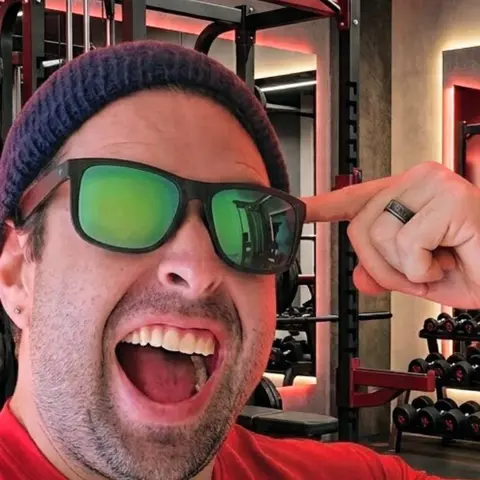
Jordan DuBois has been lifting for 20 years and won the men's open lightweight class at the 2013 NPC Natural Western in Arizona as a natural, after placing 2nd at the 2011 NPC Western Regional. Jordan holds summa cum laude degrees in applied mathematics and biology from Arizona State University, and founded Template Trainer to run proven programs the way their authors wrote them.